Cloud Providers
ClusterControl supports integration with object storage solutions from multiple providers:
- Amazon Web Services Simple Storage Service (AWS S3)
- Google Cloud Storage
- Azure Blog Storage (via an S3‐compatible interface or directly via credentials)
- S3‐compatible object storage providers (e.g., MinIO, DigitalOcean Spaces, OpenStack, etc.)
Once configured, you can use cloud object storage as an offsite storage for backups created by ClusterControl.
Components
Cloud provider integration is provided by the following ClusterControl modules:
- ClusterControl Cloud (
cmon-cloud) - A daemonize process running on port 9518 that connects to all supported cloud providers, providing a bridge tocludfor object storage manipulation. See ClusterControl Cloud. - ClusterControl Cloud File Manager (
clud) - A client tool used by ClusterControl Controller to manage the cloud objects. See ClusterControl Cloud File Manager.
ClusterControl Controller (cmon) uses clud to create and delete bucket, upload, download and remove files.
Prerequisites
-
You will need valid credentials for the selected cloud storage provider:
- Amazon Web Services (AWS): Access Key ID and Secret Access Key.
- Google Cloud Storage (GCS): Service account JSON key file.
- Microsoft Azure: Service principal credentials or S3-compatible credentials, depending on the deployment setup.
- Other S3-Compatible Providers: Access key, secret key, region, and custom endpoint information.
-
Depending on the provider, you may need to specify the storage region or service endpoint:
- AWS: Specify the target region (for example, eu-west-2).
- Google Cloud Storage: Region configuration is typically handled through the service account credentials.
- Microsoft Azure: May require a custom endpoint or S3-compatible gateway configuration.
- Other S3-Compatible Providers: Specify the custom endpoint URL (for example,
https://nyc3.digitaloceanspaces.com) and region if required.
-
Ensure the cloud storage user account has sufficient privileges to access, list, create, and delete the cloud buckets and objects.
Accessing the Cloud Storage Credentials section
-
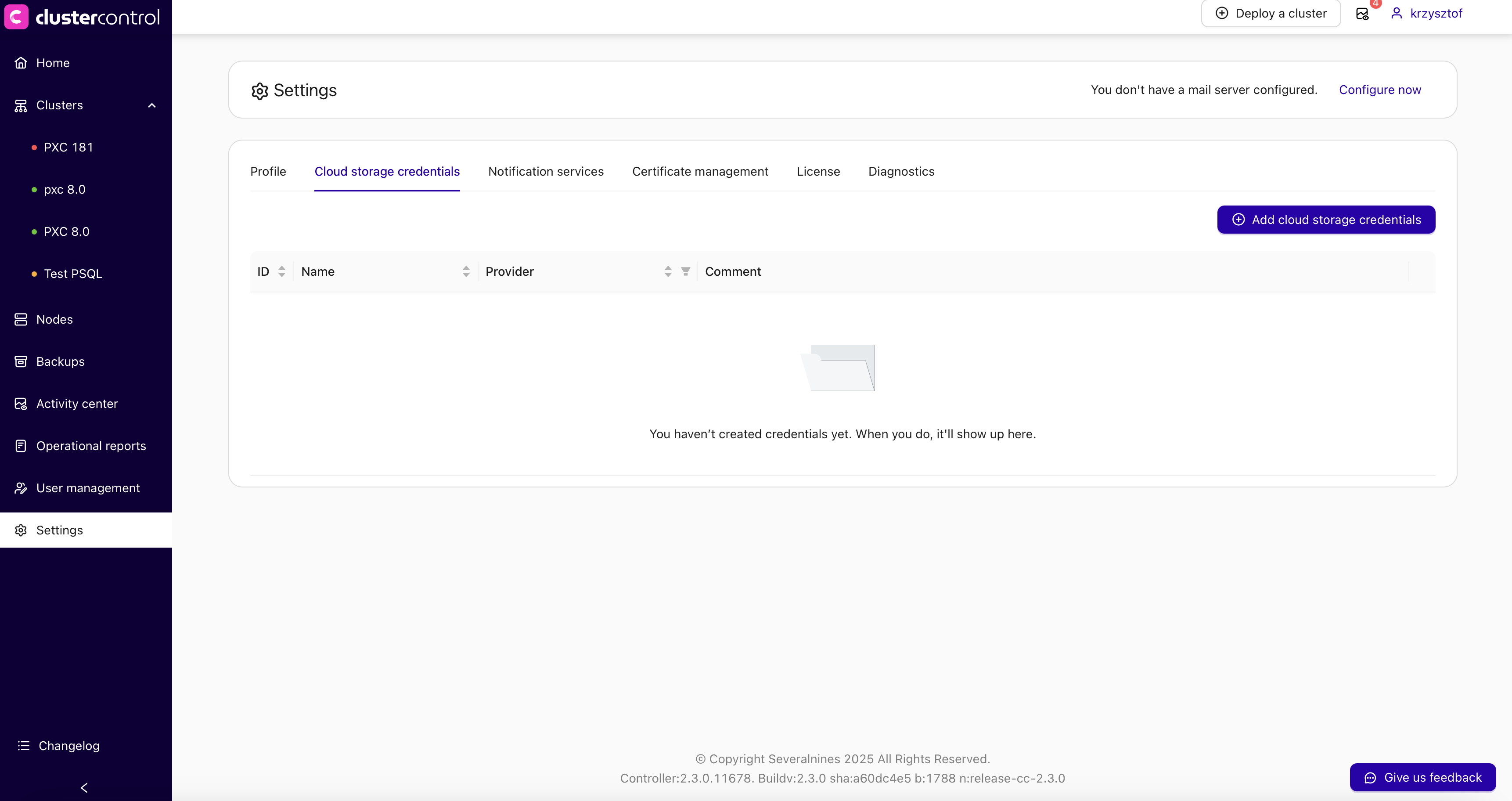
In ClusterControl, navigate to the Settings → Cloud storage credentials section. There is an option to Add cloud storage credentials.
-
Click Add cloud storage credentials.
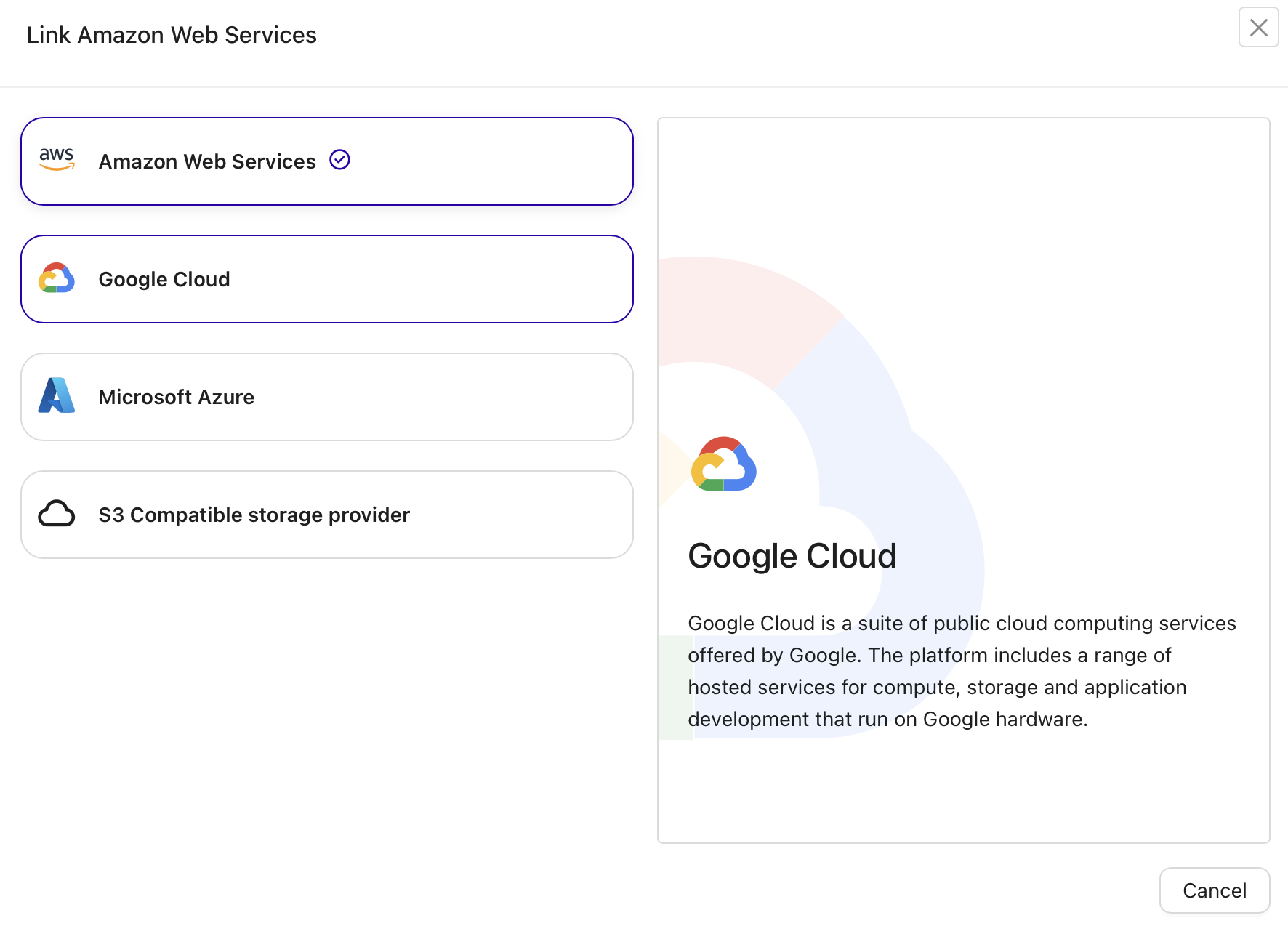
You will see a list of supported providers:
- Amazon Web Services
- Google Cloud
- Microsoft Azure
-
S3 Compatible storage provider
-
Select the one you want to use.
Creating a New S3 Integration
Setting up AWS S3
-
Select “Amazon Web Services”.
-
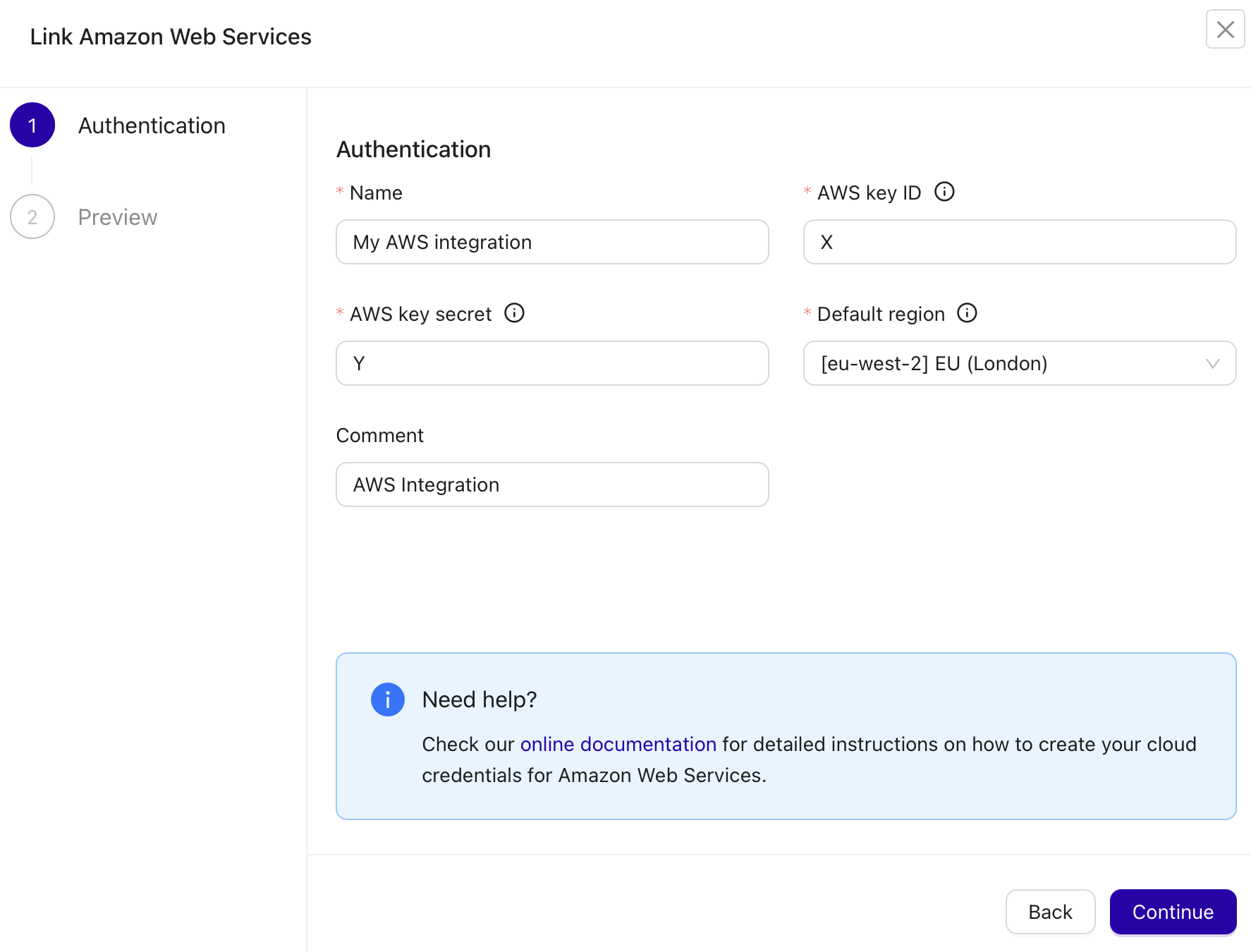
Enter Credentials in the Authentication step:
- Name: A descriptive label, e.g. My AWS Integration.
- AWS key ID: Your AWS access key ID.
- AWS key secret: Your AWS secret access key.
- Default region: Choose your primary region, e.g. [eu-west-2] EU (London).
- Comment: Optional internal notes (e.g., AWS integration).
-
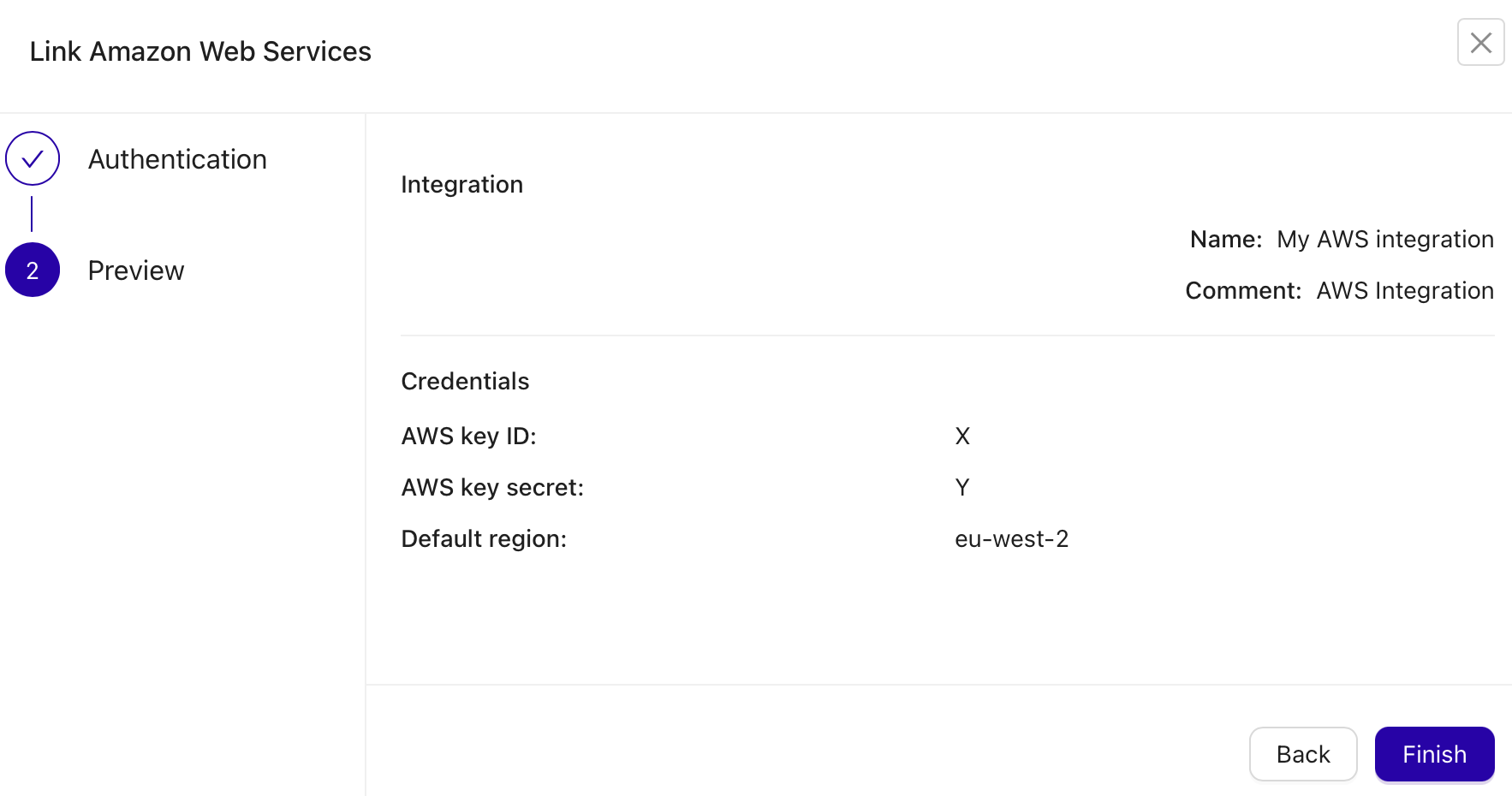
Click Continue to move to the Preview screen.
-
Review the details (key ID, region, etc.) and click Finish to create the integration.
Setting up Google Cloud
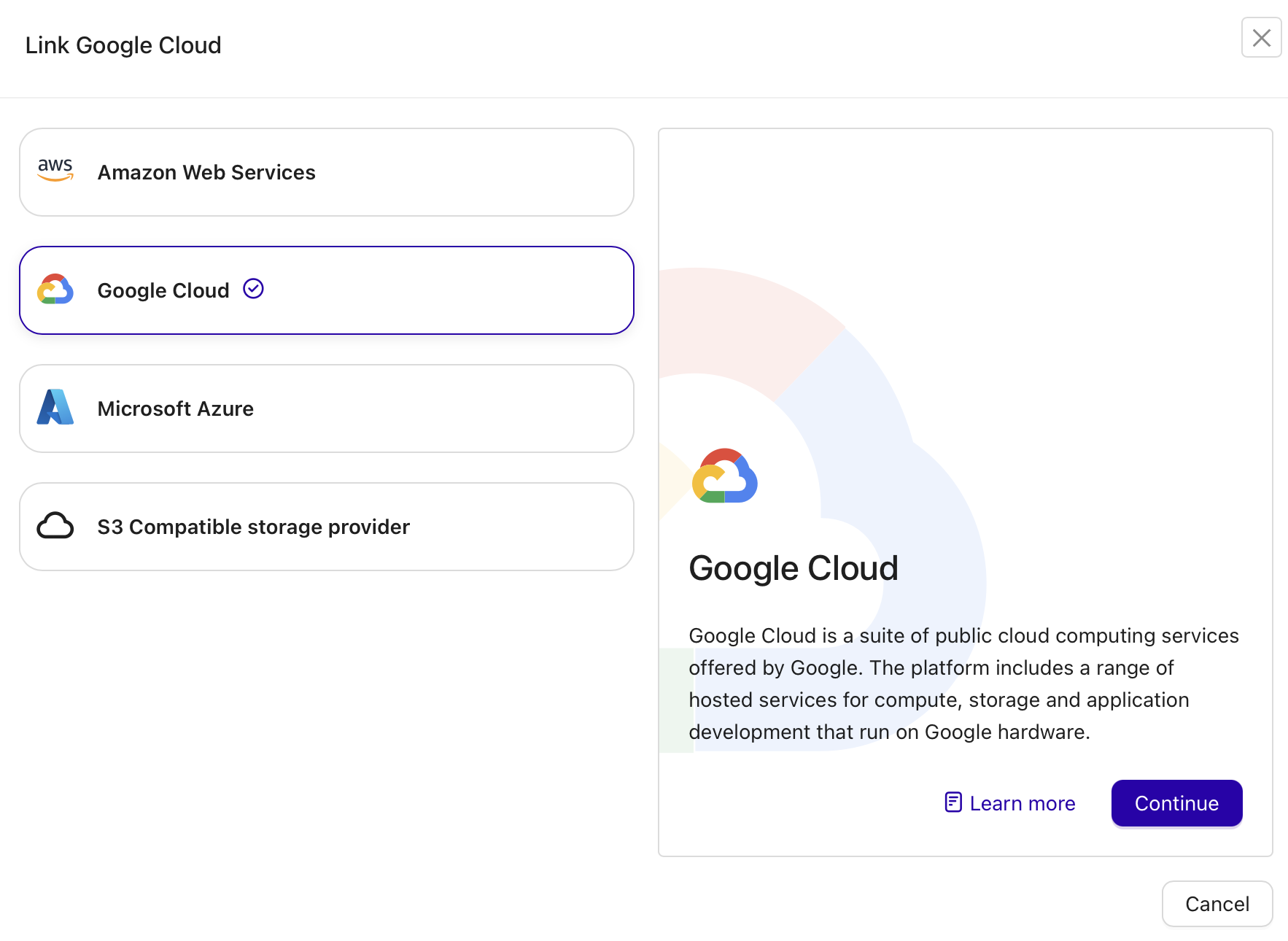
-
Select Google Cloud.
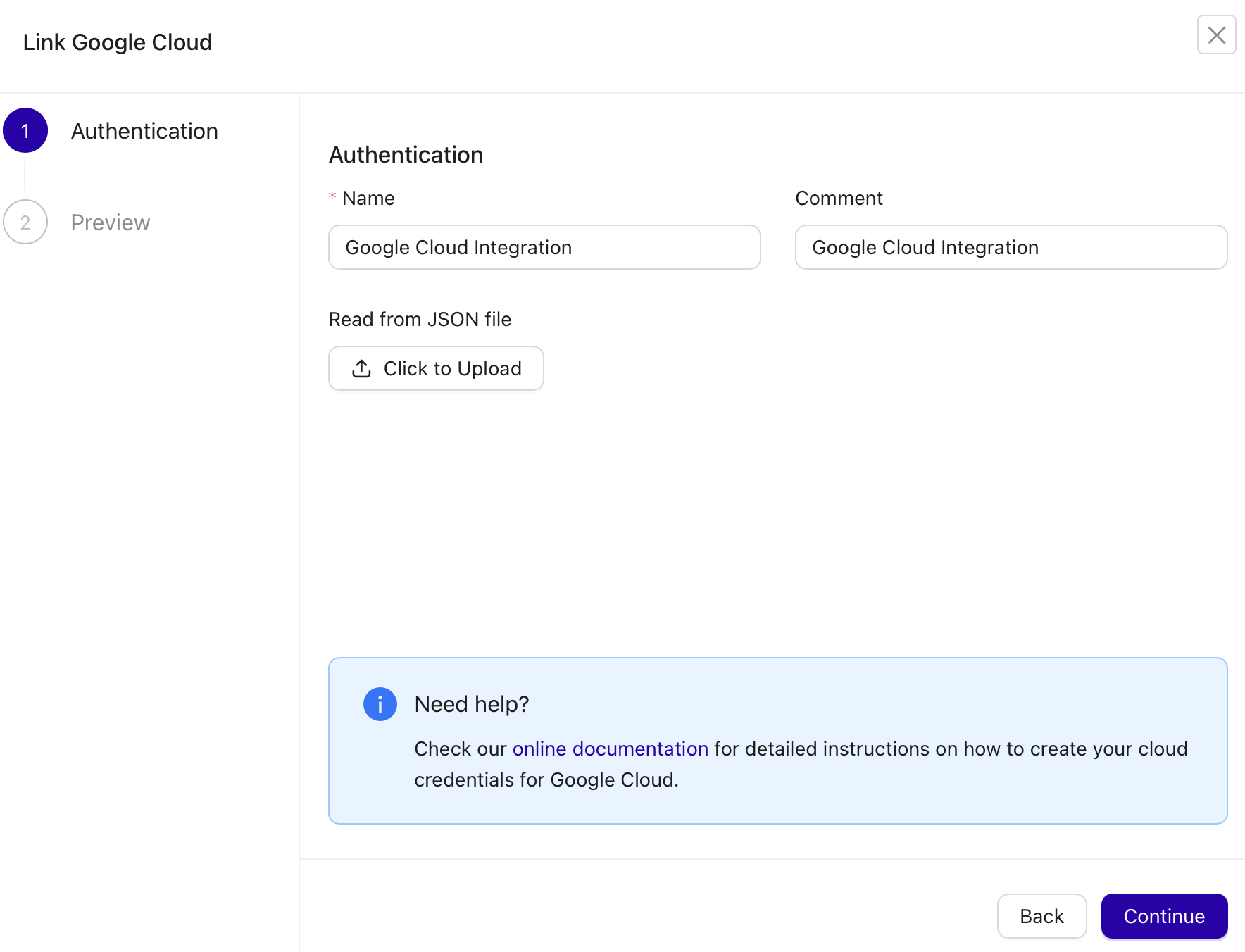
-
Enter credentials in the authentication step:
- Name: Enter a descriptive label, e.g. Google Cloud Integration.
- Comment: Optional internal description.
- Read from JSON file: Click the Click to Upload button to browse for and upload your Google Cloud service account JSON file.
This JSON file contains the keys and project info needed to authenticate with Google Cloud Storage. For details on creating the JSON file, see Create and delete service account keys.
-
Click Continue to view the Preview screen.
-
Verify the integration name and any other details you entered. If correct, Click Finish to save the integration.
Setting up Microsoft Azure
-
Select “Microsoft Azure” from the provider list.
-
Enter credentials in the authentication step:
- Name: e.g. Azure Integration.
- Comment: e.g. Azure integration for S3 storage.
- Read from JSON file: Upload your Azure credential JSON.
The contents and format of this file depend on your Azure setup. It may include your storage account, tenant ID, client ID, secret, etc.
Example
Here is an example of Azure JSON credential file content:
{ "azureCredentials": { "applicationId": "d3b07384-d9a1-4b88-8c5f-2a8c4f8d1234", "clientSecret": "4444444444444444444444444mnopqrst", "subscriptionId": "a1b2c3d4-e5f6-7890-abcd-ef1234567890", "tenantId": "f0e1d2c3-b4a5-6789-0123-456789abcdef", "resourceGroup": "rg-myshop-staging", "storageAccount": "myshopstorage01", "region": "westeurope", "environment": "AzureCloud" } } -
Click Continue, then Preview the integration details.
-
Verify the integration name and any other details you entered. If correct, Click Finish to save the integration.
Tip
If you are using an S3‐compatible gateway for Azure (like Blob storage with S3 proxy), you might instead follow the Other S3 steps and provide the custom endpoint, access key, and secret that the gateway supplies.
Setting up S3‐Compatible Providers
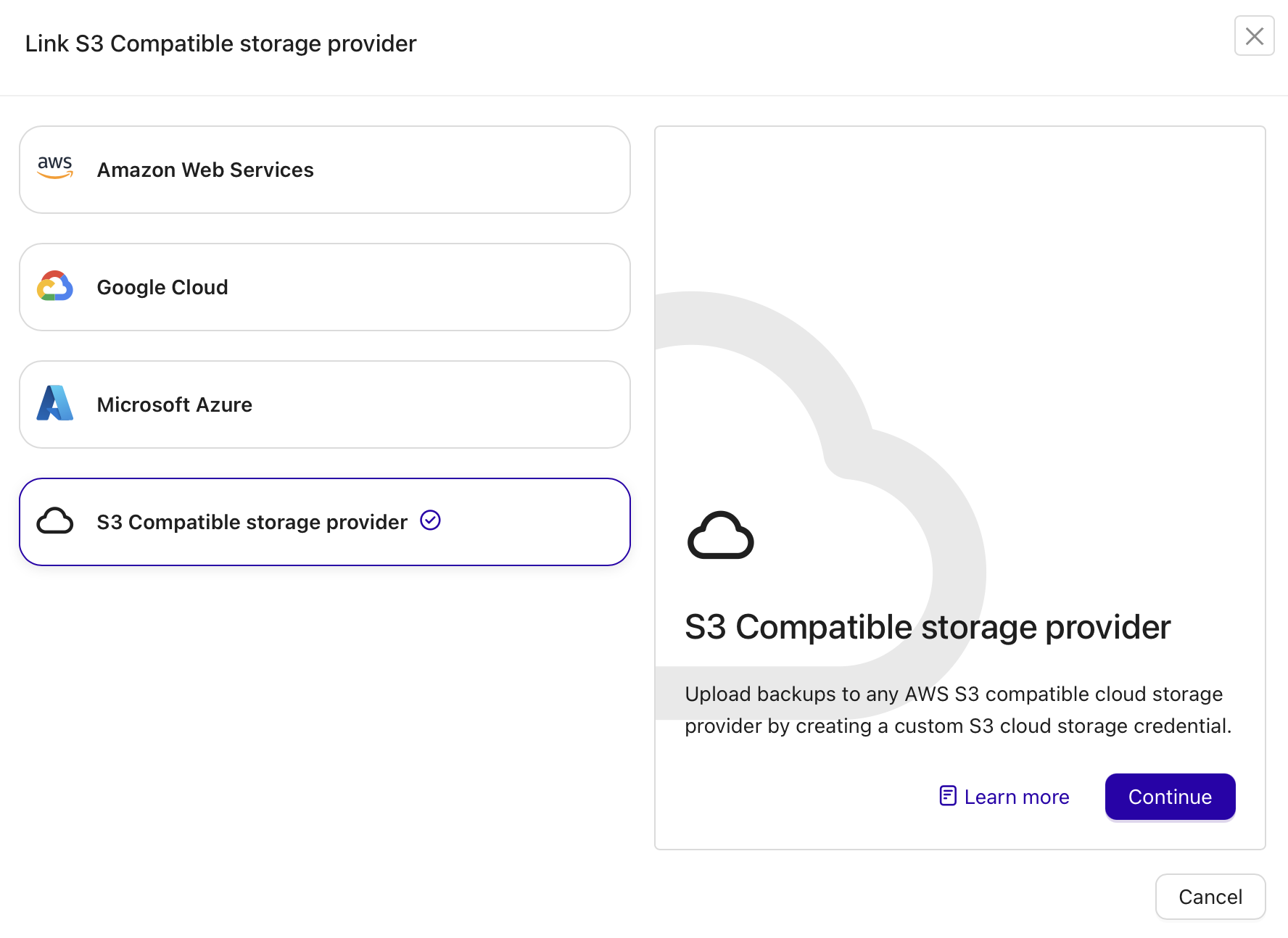
Select “S3 Compatible storage provider” if your preferred provider is not explicitly listed. This covers services like MinIO, DigitalOcean Spaces, OpenStack etc.
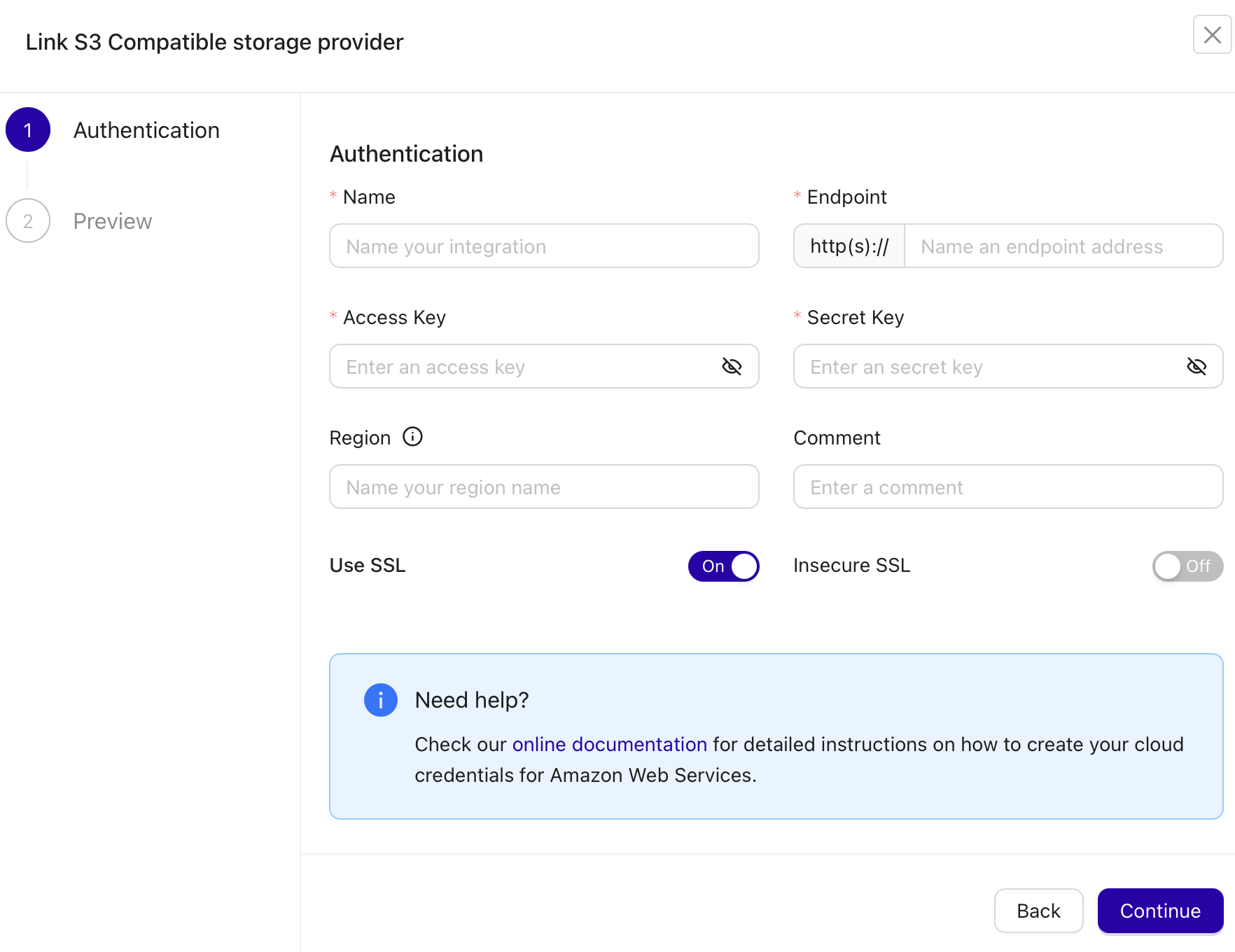
-
Select "S3 Compatible storage provider" from the provider list.
-
Enter required data in the Authentication step:
- Name: e.g. My MinIO Integration.
- Endpoint: The HTTPS URL of your service (e.g.
https://nyc3.digitaloceanspaces.com). - Access Key: The access key from your S3‐compatible account.
- Secret Key: The secret key from your S3‐compatible account.
- Region: If your provider requires a specific region name (e.g. us-east-1, us-central), enter it here. Not all providers strictly require it.
- Comment: Optional notes about this integration.
- Use SSL: On by default. If your provider uses SSL, keep it on. Otherwise, switch to “Off” or “Insecure SSL” if you must connect insecurely (not recommended).
-
Click Continue, then Preview the integration details.
-
Verify the integration name and any other details you entered. If correct, Click Finish to save the integration.