Skip to content

Redundancy & High Availability

ClusterControl can be deployed in a couple of different ways for redundancy and high availability:

  1. Secondary standby - Acts as a hot standby in case the primary ClusterControl host goes down.
  2. CMON Controller Pool - GA Release in ClusterControl 2.4.0. A scalable pool of controllers designed for demanding, multi-site and high-growth environments.
  3. ClusterControl Replication - Introduced in ClusterControl 2.4.0. High-availability deployment using replication with a primary-secondary architecture.

Secondary Standby

It is possible to have more than one ClusterControl server to monitor the same cluster. This is useful if you have a multi-datacenter cluster and you may need to have ClusterControl on the remote site to monitor and manage the alive nodes if the connection between them goes down. However, ClusterControl servers must be configured to be working in active-passive mode to avoid race conditions when recovering failed nodes or clusters.

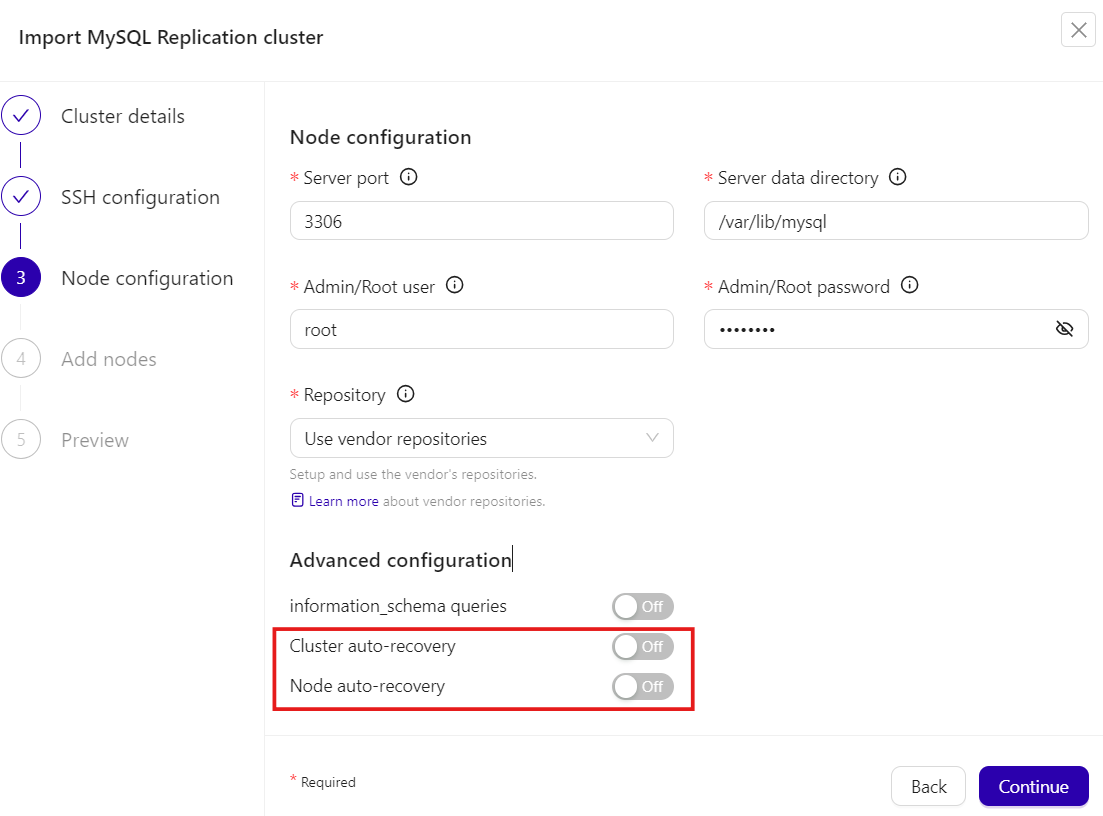
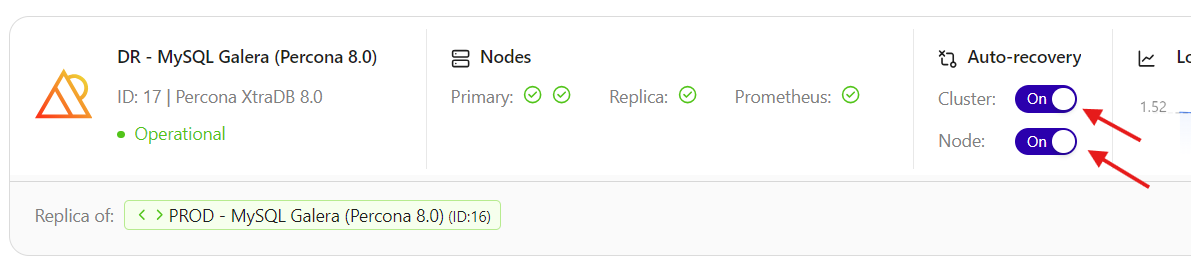
In the active mode, the ClusterControl node acts as a primary controller, where it performs automatic recovery and management activities. Therefore the primary controller Cluster/Node Auto Recovery must be set to on. The secondary ClusterControl node however must be configured with Cluster/Node Auto Recovery turned off.

Installing standby server

The steps described in this section must be performed on the secondary ClusterControl server.

  1. Install ClusterControl as explained on the Quickstart.
  2. Import the same cluster via ClusterControl GUI → Deploy a cluster → Import a database cluster. Ensure to toggle off Cluster auto-recovery and Node auto-recovery in the Node configuration section. Repeat this step if you want to import more than one cluster.

    Example
    ClusterControl logo

  3. Set up the cluster configuration accordingly to follow similar settings with the primary ClusterControl (backup schedules, alerting configuration, user roles, etc).

At this point, the architecture should be looking like this:

flowchart TD
    U[/DBA/<br>SysAdmin/] --> A[ClusterControl A<br><i><strong>Active</strong></i><br>#40;auto-recovery enabled#41;]
    B[ClusterControl B<br><i><strong>Standby</strong></i><br>#40;auto-recovery disabled#41;]
    A ==> |manage & monitor|D[[Database/<br>Load balancer nodes]]
    B ==> |monitor|D[[Database/<br>Load balancer nodes]]

Nothing should be performed on the primary side. The primary ClusterControl server shall perform automatic recovery in case of node or cluster failure. Use the secondary ClusterControl server for monitoring purposes only. For management and recovery purposes like rebuilding the replication, resyncing the node, backup and restore, perform those activities on the primary ClusterControl server.

Info

You don't need an additional ClusterControl license for multiple ClusterControl instances. You can apply the same license as your primary ClusterControl server onto the secondary server. The license is bounded on the number of database/load balancer nodes it manages.

Activating the secondary standby

If you want to make the standby server runs in the active mode, you must do the following:

  1. If the primary ClusterControl server is still alive, stop the primary ClusterControl controller services, or shutdown the server. To stop all ClusterControl processes, run the following command on the primary ClusterControl server:

    systemctl stop cmon cmon-cloud cmon-ssh cmon-events
    
  2. Toggle on Cluster auto-recovery and Node auto recovery on the secondary ClusterControl server.

    Example
    ClusterControl logo

At this point, the standby server has taken over the primary role and you can perform the management activities on the database nodes or clusters. We can visualize the current topology as below:

flowchart TD
    A[ClusterControl A<br><i><strong>Offline</strong></i><br>#40;auto-recovery disabled#41;]
    U[/DBA/<br>SysAdmin/] --> B[ClusterControl B<br><i><strong>Active</strong></i><br>#40;auto-recovery enabled#41;]
    A ==> D[[Database/<br>Load balancer nodes]]
    B ==> |manage & monitor|D[[Database/<br>Load balancer nodes]]

Attention

Do not let two or more ClusterControl instances perform automatic recovery to the same cluster at a given time.

CMON Controller Pool

CMON Controller Pool is a scalable solution that enables multiple ClusterControl controllers (CMON services) to work together as a pool, sharing the workload of managing database clusters. Instead of relying on a single controller to manage all clusters, controller pool distributes cluster load across multiple controller instances, improving performance, scalability and ensuring high availability.

This work improves scalability, resilience, and day-2 operations when managing many clusters, and is designed for demanding, multi-site and high-growth environments.

Key Features

  • Activate/Deactivate CMON Controller Pool - Enable or disable on an existing controller, allowing gradual adoption and rollback
  • Horizontal Scaling - Automatically add and remove controllers based on workload
  • Shared CMON Configurations - Using NFS for consistent configuration across the pool
  • Integrated UI/UX - Seamless interface for enabling and managing CMON Controller Pool

Enabling controller pool

  1. Go to ClusterControl GUI → Controller pool (sidebar) → Restart CMON in pool mode.

  2. Define the network mask that is allowed to connect to MySQL/PostgreSQL nodes with CIDR notation: ip/fixed_bits (e.g. 192.168.1.0/24, 10.10.0.0/16).

  3. Press on the Enable button.

This will restart the CMON service to apply the changes.

ClusterControl controller pools enabled

Rollback

If you want to disable this feature and go back to the single mode, you can go to ClusterControl GUI → Controller pool (sidebar) → Actions → Restart CMON in single mode.

Adding more controllers

You can add more controllers into the pool by clicking on the Add controller button and follow the deployment wizard accordingly.

ClusterControl controller pools adding controller

You have to specify the SSH information to access the new controller and if you want ClusterControl to install the software there.

In the next step, you need to add the new server information like server address (IP address or hostname), repository to be used during the deployment, and the RPC port for the new controller (optional).

This will install and configure a new ClusterControl controller and add it to the pool.

ClusterControl controller pools more controllers

Removing controllers

To remove a controller, simply go to Actions → Remove and ClusterControl GUI will send a signal to terminate the chosen CMON process.

Attention

The controller must be stopped to be removed.

ClusterControl Replication

ClusterControl Replication provides a high-availability solution for ClusterControl using replication with open-source tools. This deployment uses a primary-secondary architecture where only one ClusterControl instance is active at a time, with the other on cold standby.

Key Components

  • MySQL Replication - Provides CMON database redundancy using primary-replica topology
  • File Syncing - Uses rsync and lsyncd for one-way synchronization of ClusterControl files
  • Virtual IP (VIP) - Managed by Keepalived for seamless client connectivity during failover
  • External Prometheus - Must be deployed on a separate host (not co-located with ClusterControl)

Architecture

The active node holding the VIP is:

  • The primary ClusterControl server
  • The primary MySQL instance with read-write access
  • The source for file syncing operations
  • Configured to use VIP for outbound connections
flowchart TD
    U[/DBA/<br>SysAdmin/] --> V((VIP))
    V --> |active|A[ClusterControl A<br>#40;**primary**#41;] -..-> |replicate|B[ClusterControl B<br>#40;**secondary**#41;]
    V -..-> |standby|B
    A & B --> C([Prometheus])
    A ==> |outbound <br>via VIP|V ==> D[[Database/<br>Load balancer nodes]]
    subgraph "ClusterControl Replication"
        A
        B
    end

Known limitations

Please understand the following limitations and restrictions with this setup:

  1. Prometheus is a single point of failure. You can achieve redundancy for this component by implementing remote write to another Prometheus server. This is out of the scope of this article.
  2. The managed cluster database backups should NOT be stored on the ClusterControl server. You have other options like store backup on the database node, or upload backups to cloud (optionally choose "Delete after upload"). It is also possible to store the backups on ClusterControl node using shared storage (NFS/CIFS/SMB) mounted on the same path on both cc1 and cc2.
  3. This setup relies on virtual IP address, provided by Keepalived which only works on Layer 2 broadcast domain, recommended for LAN. It can be used across WAN only if L2 connectivity is extended (e.g., VPLS or bridging), though it is not recommended for high-latency connections.

Requirements

The following requirements must be met to deploy ClusterControl Replication:

  • 3 nodes minimum:
    • ClusterControl A (cc1) - Primary node
    • ClusterControl B (cc2) - Secondary node
    • Prometheus (prom) - External monitoring node
  • Virtual IP address (e.g., 192.168.73.200)
  • MySQL 8+ with CLONE plugin enabled
  • VRRP support between ClusterControl nodes (Layer 2 connectivity)
  • Shared SSH private key between nodes

Deployment steps

This guide uses the following example configuration:

  • VIP: 192.168.73.200
  • cc1 (primary): 192.168.73.201
  • cc2 (secondary): 192.168.73.202
  • prom (Prometheus): 192.168.73.209

Info

Adapt all IP addresses, hostnames, and interface names to match your environment.

  1. Host Preparation (All Nodes)

    1.1. Configure /etc/hosts on all nodes (cc1, cc2, and prom):

    tee -a /etc/hosts <<EOF
    192.168.73.200      ccvip.local ccvip
    192.168.73.201      cc1.local cc1
    192.168.73.202      cc2.local cc2
    192.168.73.209      prom.local prom
    EOF
    

    1.2. Generate SSH keys on cc1:

    # As root
    ssh-keygen -t rsa    # press Enter on all prompts
    

    1.3. Prepare root SSH access on all nodes (cc2 and prom):

    mkdir -p /root/.ssh
    chmod 700 /root/.ssh
    vi /root/.ssh/id_rsa    # copy the content of /root/.ssh/id_rsa on cc1 here
    chmod 600 /root/.ssh/id_rsa
    

    1.4. Copy the public key to all nodes:

    # Get the public key
    cat /root/.ssh/id_rsa.pub
    
    # On each node (cc1, cc2, prom), add it to authorized_keys
    tee -a /root/.ssh/authorized_keys <<EOF
    # paste public key here
    EOF
    

    1.5. Configure SSH to allow root login with key:

    sed -i 's/^#PermitRootLogin.*/PermitRootLogin prohibit-password/' /etc/ssh/sshd_config
    systemctl restart sshd
    

    Verify passwordless SSH from cc1 to all nodes:

    ssh root@cc1 hostname
    ssh root@cc2 hostname
    ssh root@prom hostname
    
  2. Keepalived Installation (cc1 and cc2)

    Keepalived provides a virtual IP service and it will be used as the single-endpoint access for ClusterControl services. The ClusterControl GUI will be accessible via VIP, for example: https://192.168.73.200/.

    2.1. Install Keepalived and iptables on both ClusterControl nodes:

    apt update
    apt install -y keepalived iptables
    

    2.2. Enable non-local IP binding:

    echo "net.ipv4.ip_nonlocal_bind = 1" | tee -a /etc/sysctl.conf
    sysctl -p
    

    2.3. Create the SNAT management script /etc/keepalived/manage_snat.sh on both cc1 and cc2 to force outbound connections to use the VIP:

    tee /etc/keepalived/manage_snat.sh <<'EOF'
    #!/bin/bash
    
    ## Change me
    VIP='192.168.73.200'
    INTERFACE='eth0'
    ##
    
    TYPE=$1
    NAME=$2
    STATE=$3
    
    case $STATE in
        "MASTER")
            iptables -t nat -A POSTROUTING -o $INTERFACE -j SNAT --to-source $VIP
            ;;
        "BACKUP"|"FAULT")
            iptables -t nat -D POSTROUTING -o $INTERFACE -j SNAT --to-source $VIP
            ;;
    esac
    EOF
    

    Attention

    Adjust INTERFACE='eth0' and VIP='192.168.73.200' to match your network interface and virtual IP address. Check with ip a or ifconfig.

    2.4. Make the script executable:

    chmod +x /etc/keepalived/manage_snat.sh
    

    2.5. Configure Keepalived on cc1 (priority 105):

    tee /etc/keepalived/keepalived.conf <<'EOF'
    vrrp_script check_cmon {
    script "/usr/bin/killall -0 cmon"
    interval 2
    weight 2
    }
    vrrp_instance VI_1 {
    state BACKUP
    nopreempt
    interface eth0
    virtual_router_id 51
    priority 105
    advert_int 1
    authentication {
        auth_type PASS
        auth_pass 1113
    }
    virtual_ipaddress {
        192.168.73.200   # the VIP
    }
    track_script {
        check_cmon
    }
    notify /etc/keepalived/manage_snat.sh
    }
    EOF
    

    2.6. Configure Keepalived on cc2 (priority 100):

    tee /etc/keepalived/keepalived.conf <<'EOF'
    vrrp_script check_cmon {
    script "/usr/bin/killall -0 cmon"
    interval 2
    weight 2
    }
    vrrp_instance VI_1 {
    state BACKUP
    nopreempt
    interface eth0
    virtual_router_id 51
    priority 100
    advert_int 1
    authentication {
        auth_type PASS
        auth_pass 1113
    }
    virtual_ipaddress {
        192.168.73.200   # the VIP
    }
    track_script {
        check_cmon
    }
    notify /etc/keepalived/manage_snat.sh
    }
    EOF
    

    Attention

    Change the interface and virtual_ipaddress values accordingly.

    2.7. Ensure Keepalived is stopped on cc1 and cc2 and we will start Keepalived later, after we have configured file replication:

    systemctl stop keepalived
    
  3. Install ClusterControl

    3.1. As root, install ClusterControl on cc1:

    wget https://severalnines.com/downloads/cmon/install-cc
    chmod +x install-cc
    ./install-cc    # follow the installation wizard
    

    3.2. Stop all ClusterControl services and MySQL, and disable cmon on boot:

    systemctl stop cmon cmon-cloud cmon-ssh cmon-events cmon-proxy kuber-proxy
    systemctl stop mysql
    systemctl disable cmon
    

    Repeat steps 3.1 and 3.2 on cc2. Make sure you stop ClusterControl services and MySQL.

    3.3. On cc1 and cc2, set the VIP as the hostname value inside /etc/cmon.cnf:

    hostname=192.168.73.200
    

    3.4. On cc1 and cc2, add the following line to define the Prometheus host 192.168.73.209 inside /etc/cmon.cnf:

    prometheus_hostname=192.168.73.209
    

    3.5. On cc1 and cc2, configure /etc/default/cmon as below to allow ClusterControl RPC interface to listen to all IP addresses (including VIP):

    # New events client http callback as of v1.4.2!
    EVENTS_CLIENT="http://127.0.0.1:9510"
    CLOUD_SERVICE="http://127.0.0.1:9518"
    RPC_BIND_ADDRESSES="0.0.0.0,127.0.0.1"
    
  4. Configure MySQL replication for CMON DB

    4.1. Stop MySQL service on both cc1 and cc2 if you haven't done so:

    systemctl stop mysql
    

    4.2. On both cc1 and cc2, comment the following line inside /etc/mysql/my.cnf (because we want to enable binlog for replication):

    #skip-log-bin
    

    4.3. On cc1, configure MySQL configuration file, /etc/mysql/my.cnf as below under the [mysqld] section:

    # add the following lines if not exist
    server-id               = 1
    log_bin                 = mysql-bin
    binlog_format           = ROW
    gtid_mode               = ON
    enforce_gtid_consistency= ON
    log_slave_updates       = ON
    binlog_expire_logs_seconds = 604800
    bind-address            = 0.0.0.0
    # CLONE plugin
    plugin-load-add         = mysql_clone.so
    clone                   = FORCE_PLUS_PERMANENT
    clone_valid_donor_list  = 'cc1:3306,cc2:3306'
    

    4.4. On cc2, configure MySQL configuration file, /etc/mysql/my.cnf as below under the [mysqld] section (the difference is server-id):

    # add the following lines if not exist
    server-id               = 2
    log_bin                 = mysql-bin
    binlog_format           = ROW
    gtid_mode               = ON
    enforce_gtid_consistency= ON
    log_slave_updates       = ON
    binlog_expire_logs_seconds = 604800
    bind-address            = 0.0.0.0
    # CLONE plugin
    plugin-load-add         = mysql_clone.so
    clone                   = FORCE_PLUS_PERMANENT
    clone_valid_donor_list  = 'cc1:3306,cc2:3306'
    

    4.5. Start MySQL on cc1 and cc2, make sure MySQL is operational after restart:

    systemctl start mysql
    systemctl status mysql
    

    4.6. Configure MySQL on cc1 as primary:

    -- mysql on cc1
    CREATE USER 'clone'@'%' IDENTIFIED BY 'Secur3_p4ssword';
    GRANT BACKUP_ADMIN, CLONE_ADMIN ON *.* TO 'clone'@'%';
    -- for repl user, we use mysql_native_password plugin to simplify replication configuration
    CREATE USER 'repl'@'%' IDENTIFIED WITH 'mysql_native_password' BY 'Secur3_p4ssword';
    GRANT REPLICATION SLAVE, REPLICATION CLIENT ON *.* TO 'repl'@'%';
    

    4.7. On cc2, initiate the clone to sync MySQL data from cc1:

    -- mysql on cc2
    CLONE INSTANCE FROM 'clone'@'cc1':3306 IDENTIFIED BY 'Secur3_p4ssword';
    

    4.8. On cc2, start the MySQL replication and check the status:

    -- mysql on cc2
    CHANGE REPLICATION SOURCE TO
    SOURCE_HOST = 'cc1',
    SOURCE_USER = 'repl',
    SOURCE_PASSWORD = 'Secur3_p4ssword',
    SOURCE_AUTO_POSITION = 1;
    

    4.9. Start the replication and check the replication status:

    -- mysql on cc2
    START REPLICA;
    SHOW REPLICA STATUS\G
    

    Make sure you see the following:

        Replica_IO_Running: Yes
        Replica_SQL_Running: Yes
    

    The above means cc2 MySQL is actively replicating from cc1.

    4.9. On cc2, configure MySQL to be a read-only replica to protect against accidental writes:

    -- mysql on cc2
    SET GLOBAL read_only = 1;
    SET GLOBAL super_read_only = 1;
    
  5. Configure file syncing

    5.1. Install rsync and lsyncd on cc1 and cc2:

    apt install -y rsync lsyncd
    

    5.2. Create the lsyncd configuration directory:

    mkdir /etc/lsyncd
    

    5.3. Add the following line into /etc/lsyncd/lsyncd.conf.lua on cc1:

    settings {
        logfile = "/var/log/lsyncd.log",
        statusFile = "/var/log/lsyncd.status",
        statusInterval = 10
    }
    
    -- 1. Sync for directories (Add trailing slashes to source)
    local sync_dirs = {
        "/var/lib/cmon/",
        "/etc/cmon.d/",
        "/root/.s9s/",
        "/var/www/html/clustercontrol-mcc/",
        "/var/www/html/cmon-repos/",
        "/usr/share/ccmgr/"
    }
    
    for _, path in ipairs(sync_dirs) do
        sync {
            default.rsync,
            source = path, -- The trailing slash here means "sync contents"
            target = "cc2:" .. path,
            rsync = {
                archive = true,
                compress = true
            }
        }
    end
    
    -- 2. Sync for the individual file /etc/s9s.conf
    sync {
        default.rsync,
        source = "/etc/",
        target = "cc2:/etc/",
        rsync = {
            archive = true,
            _extra = {
                "--include=/cmon.cnf",
                "--include=/cmon-events.cnf",
                "--include=/s9s.cnf",
                "--exclude=*"
            }
        }
    }
    

    5.4. Add the following line into /etc/lsyncd/lsyncd.conf.lua on cc2:

    settings {
        logfile = "/var/log/lsyncd.log",
        statusFile = "/var/log/lsyncd.status",
        statusInterval = 10
    }
    
    -- 1. Sync for directories (Add trailing slashes to source)
    local sync_dirs = {
        "/var/lib/cmon/",
        "/etc/cmon.d/",
        "/root/.s9s/",
        "/var/www/html/clustercontrol-mcc/",
        "/var/www/html/cmon-repos/",
        "/usr/share/ccmgr/"
    }
    
    for _, path in ipairs(sync_dirs) do
        sync {
            default.rsync,
            source = path, -- The trailing slash here means "sync contents"
            target = "cc1:" .. path,
            rsync = {
                archive = true,
                compress = true
            }
        }
    end
    
    -- 2. Sync for the individual file /etc/s9s.conf
    sync {
        default.rsync,
        source = "/etc/",
        target = "cc1:/etc/",
        rsync = {
            archive = true,
            _extra = {
                "--include=/cmon.cnf",
                "--include=/cmon-events.cnf",
                "--include=/s9s.cnf",
                "--exclude=*"
            }
        }
    }
    

    5.5. Start Keepalived service on cc1 only, so VIP will be available on cc1 before we can start ClusterControl services:

    systemctl start keepalived
    systemctl enable keepalived
    

    5.6. Start ClusterControl services on cc1 only:

    systemctl start cmon cmon-cloud cmon-ssh cmon-events cmon-proxy kuber-proxy
    

    5.7. Ping ClusterControl RPC interface for cid 0 on cc1 only, make sure you get the "Ok" reply:

    $ s9s cluster --ping --cluster-id=0
    PING Ok   4 ms
    

    5.8. Start the lsyncd service on cc1 only and make sure it is running (DO NOT START it on cc2):

    systemctl start lsyncd
    systemctl status lsyncd
    

    5.9. We will intentionally set lsyncd to NOT start on boot for both cc1 and cc2:

    systemctl disable lsyncd
    

    5.10. Monitor the file syncing operation. Make sure you see something similar to below:

    $ tail -f /var/log/lsyncd.log
    Thu Jan 22 17:45:02 2026 Normal: recursive startup rsync: /var/www/html/cmon-repos/ -> cc2:/var/www/html/cmon-repos/
    Thu Jan 22 17:45:02 2026 Normal: recursive startup rsync: /usr/share/ccmgr/ -> cc2:/usr/share/ccmgr/
    Thu Jan 22 17:45:02 2026 Normal: recursive startup rsync: /etc/ -> cc2:/etc/
    Thu Jan 22 17:45:03 2026 Normal: Startup of /var/www/html/clustercontrol-mcc/ -> cc2:/var/www/html/clustercontrol-mcc/ finished.
    Thu Jan 22 17:45:04 2026 Normal: Startup of /etc/ -> cc2:/etc/ finished.
    Thu Jan 22 17:45:04 2026 Normal: Startup of /var/lib/cmon/ -> cc2:/var/lib/cmon/ finished.
    Thu Jan 22 17:45:04 2026 Normal: Startup of /usr/share/ccmgr/ -> cc2:/usr/share/ccmgr/ finished.
    Thu Jan 22 17:45:04 2026 Normal: Startup of /etc/cmon.d/ -> cc2:/etc/cmon.d/ finished.
    Thu Jan 22 17:45:04 2026 Normal: Startup of /root/.s9s/ -> cc2:/root/.s9s/ finished.
    Thu Jan 22 17:45:04 2026 Normal: Startup of /var/www/html/cmon-repos/ -> cc2:/var/www/html/cmon-repos/ finished.
    

    5.11. On cc2, enable keepalived on boot and start it up:

    systemctl enable keepalived
    systemctl stop keepalived
    systemctl start keepalived
    

    5.12. On cc2, you should see it is entering the BACKUP state and you don't see the VIP there:

    $ grep Keepalived /var/log/syslog
    2026-01-22T16:42:24.652694+00:00 cc1 Keepalived[720]: Starting VRRP child process, pid=730
    2026-01-22T16:42:24.652701+00:00 cc1 Keepalived[720]: Startup complete
    2026-01-22T16:42:24.652722+00:00 cc1 Keepalived_vrrp[730]: (VI_1) Entering BACKUP STATE (init)
    

    5.13. Verify that only cc1 has the VIP:

    cc1:

    $ ip a | grep global  # on cc1
    inet 192.168.73.201/24 brd 192.168.73.255 scope global eth0
    inet 192.168.73.200/32 scope global eth0
    

    cc2:

    $ ip a | grep global  # on cc2
    inet 192.168.73.202/24 brd 192.168.73.255 scope global eth0
    

    5.14. Verify that we have the POSTROUTING chain configured, to force VIP as the outbound address on cc1:

    $ iptables -t nat -L POSTROUTING -n --line-numbers
    Chain POSTROUTING (policy ACCEPT)
    num  target     prot opt source               destination
    1    SNAT       all  --  0.0.0.0/0            0.0.0.0/0            to:192.168.73.200
    

    At this moment, ClusterControl on cc1 is the primary and cc2 is the secondary (replica).

  1. Host Preparation (All Nodes)

    1.1. Configure /etc/hosts on all nodes (cc1, cc2, and prom):

    tee -a /etc/hosts <<EOF
    192.168.73.200      ccvip.local ccvip
    192.168.73.201      cc1.local cc1
    192.168.73.202      cc2.local cc2
    192.168.73.209      prom.local prom
    EOF
    

    1.2. Generate SSH keys on cc1:

    # As root
    ssh-keygen -t rsa -b 4096   # press Enter on all prompts
    

    1.3. Prepare root SSH access on all nodes (cc2 and prom):

    mkdir -p /root/.ssh
    chmod 700 /root/.ssh
    vi /root/.ssh/id_rsa    # copy the content of /root/.ssh/id_rsa on cc1 here
    chmod 600 /root/.ssh/id_rsa
    

    1.4. Copy the public key to all nodes:

    # Get the public key
    cat /root/.ssh/id_rsa.pub
    
    # On each node (cc1, cc2, prom), add to authorized_keys
    tee -a /root/.ssh/authorized_keys <<EOF
    # paste public key here
    EOF
    

    1.5. Configure SSH to allow root login with key:

    sed -i 's/^#PermitRootLogin.*/PermitRootLogin prohibit-password/' /etc/ssh/sshd_config
    systemctl restart sshd
    

    1.6. Verify passwordless SSH from cc1 to all nodes:

    ssh root@cc1 hostname
    ssh root@cc2 hostname
    ssh root@prom hostname
    

    1.7. Disable firewalld to simplify deployment (or configure appropriate rules):

    systemctl stop firewalld
    systemctl disable firewalld
    
  2. Keepalived Installation (cc1 and cc2)

    Keepalived provides a virtual IP service and it will be used as the single-endpoint access for ClusterControl services. The ClusterControl GUI will be accessible via VIP, for example: https://192.168.73.200/.

    2.1. Install Keepalived and iptables on both ClusterControl nodes:

    dnf install -y keepalived iptables
    

    2.2. Enable non-local IP binding:

    echo "net.ipv4.ip_nonlocal_bind = 1" | tee -a /etc/sysctl.conf
    sysctl -p
    

    2.3. Create the SNAT management script /etc/keepalived/manage_snat.sh on both cc1 and cc2 to force outbound connections to use the VIP:

    tee /etc/keepalived/manage_snat.sh <<'EOF'
    #!/bin/bash
    
    ## Change me
    VIP='192.168.73.200'
    INTERFACE='eth0'
    ##
    
    TYPE=$1
    NAME=$2
    STATE=$3
    
    case $STATE in
        "MASTER")
            # Add the SNAT rule when this node takes the VIP
            iptables -t nat -A POSTROUTING -o $INTERFACE -j SNAT --to-source $VIP
            ;;
        "BACKUP"|"FAULT")
            # Remove the SNAT rule when this node loses the VIP
            iptables -t nat -D POSTROUTING -o $INTERFACE -j SNAT --to-source $VIP
            ;;
        *)
            exit 1
            ;;
    esac
    EOF
    

    Attention

    Adjust INTERFACE='eth0' and VIP='192.168.73.200' to match your network interface and virtual IP address. Check with ip a or ifconfig.

    2.4. Make the script executable:

    chmod +x /etc/keepalived/manage_snat.sh
    

    2.5. Configure Keepalived on cc1 (priority 105):

    tee /etc/keepalived/keepalived.conf <<'EOF'
    vrrp_script check_cmon {
    script "/usr/bin/killall -0 cmon"
    interval 2
    weight 2
    }
    vrrp_instance VI_1 {
    state BACKUP
    nopreempt
    interface ens18
    virtual_router_id 51
    priority 105
    advert_int 1
    authentication {
        auth_type PASS
        auth_pass 1113
    }
    virtual_ipaddress {
        192.168.73.200    # the VIP
    }
    track_script {
        check_cmon
    }
    # Execute the script on any state change
    # Instruct outbound to use VIP
    notify /etc/keepalived/manage_snat.sh
    }
    EOF
    

    2.6. Configure Keepalived on cc2 (priority 100):

    tee /etc/keepalived/keepalived.conf <<'EOF'
    vrrp_script check_cmon {
    script "/usr/bin/killall -0 cmon"
    interval 2
    weight 2
    }
    vrrp_instance VI_1 {
    state BACKUP
    nopreempt
    interface ens18
    virtual_router_id 51
    priority 100
    advert_int 1
    authentication {
        auth_type PASS
        auth_pass 1113
    }
    virtual_ipaddress {
        192.168.73.200    # the VIP
    }
    track_script {
        check_cmon
    }
    # Execute the script on any state change
    # Instruct outbound to use VIP
    notify /etc/keepalived/manage_snat.sh
    }
    EOF
    

    Attention

    Change the interface and virtual_ipaddress values accordingly.

    2.7. Ensure Keepalived is stopped on cc1 and cc2 and we will start Keepalived later, after we have configured file replication:

    systemctl stop keepalived
    
  3. MySQL Server Setup (cc1 and cc2)

    To simplify the failover/resyncing process, we will use MySQL 8 which provides the CLONE plugin. Otherwise, by default, ClusterControl would install and use MariaDB 10.5 on Rocky 9.

    We will first install MySQL on cc1 and cc2, and we will tell ClusterControl installer script to use this MySQL server instead.

    3.1. Install MySQL Server on cc1 and cc2:

    dnf install -y mysql-server
    

    3.2. On cc1 and cc2, start MySQL server for initialization and then stop it:

    systemctl start mysqld
    # wait for 60 seconds to let datadir initialized
    systemctl stop mysqld
    

    3.3. On cc1, update MySQL configuration file at /etc/my.cnf.d/mysql-server.cnf by adding the following lines under the [mysqld] section:

    innodb_buffer_pool_size = 2G       # 50% of server's 4GB RAM
    server-id               = 1
    log_bin                 = mysql-bin
    binlog_format           = ROW
    gtid_mode               = ON
    enforce_gtid_consistency= ON
    log_slave_updates       = ON
    binlog_expire_logs_seconds = 604800
    bind-address            = 0.0.0.0
    # CLONE plugin
    plugin-load-add         = mysql_clone.so
    clone                   = FORCE_PLUS_PERMANENT
    clone_valid_donor_list  = 'cc1:3306,cc2:3306'
    

    3.4. On cc2, update MySQL configuration file at /etc/my.cnf.d/mysql-server.cnf by adding the following lines under the [mysqld] section (the difference is server-id):

    innodb_buffer_pool_size = 2G       # 50% of server's 4GB RAM
    server-id               = 2
    log_bin                 = mysql-bin
    binlog_format           = ROW
    gtid_mode               = ON
    enforce_gtid_consistency= ON
    log_slave_updates       = ON
    binlog_expire_logs_seconds = 604800
    bind-address            = 0.0.0.0
    # CLONE plugin
    plugin-load-add         = mysql_clone.so
    clone                   = FORCE_PLUS_PERMANENT
    clone_valid_donor_list  = 'cc1:3306,cc2:3306'
    

    3.5. Start MySQL and run secure installation on both nodes:

    systemctl enable mysqld
    systemctl start mysqld
    systemctl status mysqld
    mysql_secure_installation
    

    Set root password when prompted (e.g., Secur3_p4ssword).

    Attention

    If you choose Yes for VALIDATE PASSWORD COMPONENT, you need to set very strong passwords for all MySQL-related accounts in this documentation.

  4. ClusterControl Installation (cc1 and cc2)

    4.1. As root, install ClusterControl on cc1:

    wget https://severalnines.com/downloads/cmon/install-cc
    chmod +x install-cc
    ./install-cc    # follow the installation wizard
    

    4.2. Stop all ClusterControl services and disable cmon on boot:

    systemctl stop cmon cmon-cloud cmon-ssh cmon-events cmon-proxy kuber-proxy
    systemctl disable cmon
    

    4.3. Repeat steps 4.1 and 4.2 on cc2. Make sure you stop ClusterControl services.

    4.4. On cc1, set the VIP as the hostname value inside /etc/cmon.cnf:

    hostname=192.168.73.200
    

    4.5. On cc1, add the following line to define our Prometheus host inside /etc/cmon.cnf:

    prometheus_hostname=192.168.73.209
    

    4.6. On cc1 and cc2, configure /etc/default/cmon as below to allow ClusterControl RPC interface to listen to all IP addresses (including VIP):

    # New events client http callback as of v1.4.2!
    EVENTS_CLIENT="http://127.0.0.1:9510"
    CLOUD_SERVICE="http://127.0.0.1:9518"
    RPC_BIND_ADDRESSES="0.0.0.0,127.0.0.1"
    
  5. MySQL Replication Configuration

    5.1. Configure MySQL on cc1 as primary:

    -- mysql on cc1
    CREATE USER 'clone'@'%' IDENTIFIED BY 'Secur3_p4ssword';
    GRANT BACKUP_ADMIN, CLONE_ADMIN ON *.* TO 'clone'@'%';
    -- for repl user, we use mysql_native_password plugin to simplify replication configuration
    CREATE USER 'repl'@'%' IDENTIFIED WITH 'mysql_native_password' BY 'Secur3_p4ssword';
    GRANT REPLICATION SLAVE, REPLICATION CLIENT ON *.* TO 'repl'@'%';
    

    5.2. On cc2, initiate the clone to sync MySQL data from cc1:

    -- mysql on cc2
    CLONE INSTANCE FROM 'clone'@'cc1':3306 IDENTIFIED BY 'Secur3_p4ssword';
    

    5.3. On cc2, start the MySQL replication and check the status:

    -- mysql on cc2
    CHANGE REPLICATION SOURCE TO
        SOURCE_HOST = 'cc1',
        SOURCE_USER = 'repl',
        SOURCE_PASSWORD = 'Secur3_p4ssword',
        SOURCE_AUTO_POSITION = 1;
    

    5.4. Start the replication and check the replication status:

    -- mysql on cc2
    START REPLICA;
    SHOW REPLICA STATUS\G
    

    5.5. Make sure you see the following:

        Replica_IO_Running: Yes
    Replica_SQL_Running: Yes
    

    The above means cc2 MySQL is actively replicating from cc1.

    5.6. On cc2, configure MySQL to be a read-only replica to protect against accidental writes:

    -- mysql on cc2
    SET GLOBAL read_only = 1;
    SET GLOBAL super_read_only = 1;
    
  6. File Synchronization Setup

    6.1. Install rsync and lsyncd on cc1 and cc2:

    dnf install -y rsync lsyncd
    

    6.2. Clear up all existing lines inside /etc/lsyncd.conf and add the following lines on cc1:

    settings {
        logfile = "/var/log/lsyncd.log",
        statusFile = "/var/log/lsyncd.status",
        statusInterval = 10,
        insist = true
    }
    
    -- 1. Sync for directories (Add trailing slashes to source)
    local sync_dirs = {
        "/var/lib/cmon/",
        "/etc/cmon.d/",
        "/home/cloud-user/.s9s/",
        "/var/www/html/clustercontrol-mcc/",
        "/var/www/html/cmon-repos/",
        "/usr/share/ccmgr/"
    }
    
    for _, path in ipairs(sync_dirs) do
        sync {
            default.rsync,
            source = path, -- The trailing slash here means "sync contents"
            target = "cloud-user@cc2:" .. path,
            rsync = {
                archive = true,
                compress = true,
                verbose = true, 
                rsync_path = "sudo rsync",
                _extra = {"--delete"},
            }
        }
    end
    
    -- 2. Sync for the individual files
    sync {
        default.rsync,
        source = "/etc/",
        target = "cloud-user@cc2:/etc/",
        rsync = {
            archive = true,
            compress = true,
            verbose = true, 
            rsync_path = "sudo rsync",
            _extra = {
                "--include=/cmon.cnf",
                "--include=/cmon-events.cnf",
                "--include=/s9s.cnf",
                "--exclude=*",
                "--delete"
            }
        }
    }
    

    6.3. Clear up all existing lines inside /etc/lsyncd.conf and add the following lines on cc2:

    settings {
        logfile = "/var/log/lsyncd.log",
        statusFile = "/var/log/lsyncd.status",
        statusInterval = 10,
        insist = true
    }
    
    -- 1. Sync for directories (Add trailing slashes to source)
    local sync_dirs = {
        "/var/lib/cmon/",
        "/etc/cmon.d/",
        "/home/cloud-user/.s9s/",
        "/var/www/html/clustercontrol-mcc/",
        "/var/www/html/cmon-repos/",
        "/usr/share/ccmgr/"
    }
    
    for _, path in ipairs(sync_dirs) do
        sync {
            default.rsync,
            source = path, -- The trailing slash here means "sync contents"
            target = "cloud-user@cc1:" .. path,
            rsync = {
                archive = true,
                compress = true,
                verbose = true, 
                rsync_path = "sudo rsync",
                _extra = {"--delete"}
            }
        }
    end
    
    -- 2. Sync for the individual files
    sync {
        default.rsync,
        source = "/etc/",
        target = "cloud-user@cc1:/etc/",
        rsync = {
            archive = true,
            compress = true,
            verbose = true, 
            rsync_path = "sudo rsync",
            _extra = {
                "--include=/cmon.cnf",
                "--include=/cmon-events.cnf",
                "--include=/s9s.cnf",
                "--exclude=*",
                "--delete"
            }
        }
    }
    

    6.4. Start Keepalived service on cc1 only, so VIP will be available on cc1 before we can start ClusterControl services:

    systemctl start keepalived
    systemctl enable keepalived
    

    6.5. Start ClusterControl services on cc1 only:

    systemctl start cmon cmon-cloud cmon-ssh cmon-events cmon-proxy kuber-proxy
    

    6.6. Ping ClusterControl RPC interface for cid 0 on cc1 only, make sure you get the "Ok" reply:

    $ s9s cluster --ping --cluster-id=0
    PING Ok   4 ms
    

    6.7. Start the lsyncd service on cc1 only and make sure it is running (DO NOT START it on cc2):

    systemctl start lsyncd
    systemctl status lsyncd
    

    6.8. We will intentionally set lsyncd to NOT start on boot for both cc1 and cc2:

    systemctl disable lsyncd
    

    6.9. Monitor the file syncing operation. Make sure you see something similar to below:

    $ tail -f /var/log/lsyncd.log
    Thu Jan 22 17:45:02 2026 Normal: recursive startup rsync: /var/www/html/cmon-repos/ -> cc2:/var/www/html/cmon-repos/
    Thu Jan 22 17:45:02 2026 Normal: recursive startup rsync: /usr/share/ccmgr/ -> cc2:/usr/share/ccmgr/
    Thu Jan 22 17:45:02 2026 Normal: recursive startup rsync: /etc/ -> cc2:/etc/
    Thu Jan 22 17:45:03 2026 Normal: Startup of /var/www/html/clustercontrol-mcc/ -> cc2:/var/www/html/clustercontrol-mcc/ finished.
    Thu Jan 22 17:45:04 2026 Normal: Startup of /etc/ -> cc2:/etc/ finished.
    Thu Jan 22 17:45:04 2026 Normal: Startup of /var/lib/cmon/ -> cc2:/var/lib/cmon/ finished.
    Thu Jan 22 17:45:04 2026 Normal: Startup of /usr/share/ccmgr/ -> cc2:/usr/share/ccmgr/ finished.
    Thu Jan 22 17:45:04 2026 Normal: Startup of /etc/cmon.d/ -> cc2:/etc/cmon.d/ finished.
    Thu Jan 22 17:45:04 2026 Normal: Startup of /root/.s9s/ -> cc2:/root/.s9s/ finished.
    Thu Jan 22 17:45:04 2026 Normal: Startup of /var/www/html/cmon-repos/ -> cc2:/var/www/html/cmon-repos/ finished.
    

    6.10. On cc2, enable keepalived on boot and start it up:

    systemctl enable keepalived
    systemctl stop keepalived
    systemctl start keepalived
    

    6.11. On cc2, you should see it is entering the BACKUP state and you don't see the VIP there:

    $ grep Keepalived /var/log/messages
    2026-01-22T16:42:24.652694+00:00 cc1 Keepalived[720]: Starting VRRP child process, pid=730
    2026-01-22T16:42:24.652701+00:00 cc1 Keepalived[720]: Startup complete
    2026-01-22T16:42:24.652722+00:00 cc1 Keepalived_vrrp[730]: (VI_1) Entering BACKUP STATE (init)
    

    6.12. Verify that only cc1 has the VIP:

    cc1:

    $ ip a | grep global  # on cc1
    inet 192.168.73.201/24 brd 192.168.73.255 scope global eth0
    inet 192.168.73.200/32 scope global eth0
    

    cc2:

    $ ip a | grep global  # on cc2
    inet 192.168.73.202/24 brd 192.168.73.255 scope global eth0
    

    6.13. Verify that we have the POSTROUTING chain configured, to force VIP as the outbound address on cc1:

    $ iptables -t nat -L POSTROUTING -n --line-numbers
    Chain POSTROUTING (policy ACCEPT)
    num  target     prot opt source               destination
    1    SNAT       all  --  0.0.0.0/0            0.0.0.0/0            to:192.168.73.200
    

    At this moment, ClusterControl on cc1 is the primary and cc2 is the secondary (replica).

Deployment summary

To summarize the setup up until this point:

  • VIP is on cc1. Check with ip or ifconfig command.
  • Only ClusterControl services on cc1 are running, while all ClusterControl services on cc2 are stopped.
  • Only lsyncd service on cc1 is running, while lsyncd service on cc2 is stopped.
  • We haven't configured Prometheus for monitoring yet. This will happen after we have deployed/imported a cluster into ClusterControl. See below.

Access ClusterControl GUI at https://192.168.73.200 and complete the initial setup.

Deploy/Import the first cluster

It is necessary to have the first cluster in order to configure an external Prometheus server, as we don't want ClusterControl to use a local Prometheus on cc1 (and/or cc2).

  1. Login to ClusterControl GUI using the VIP at https://192.168.73.200/. Register the first admin user and continue.

  2. If the host has Internet connection, ClusterControl will be automatically configured with a 30-day trial license.

  3. Configure SSH key-based authentication using the same private key from cc1 to all DB nodes.

  4. Deploy or import a cluster using the Deploy a cluster wizard.

  5. After the deployment/import job completes, ClusterControl will configure and install Prometheus on 192.168.73.209 (prom.local) automatically (as configured previously). Verify this by looking at the Nodes page.

Once a Prometheus is running correctly, we can conclude ClusterControl Replication is fully set up now.

Management

Failover from cc1 to cc2

In order to activate cc2, the following conditions must be true:

  • All ClusterControl services are stopped on cc1.
    systemctl stop cmon cmon-cloud cmon-ssh cmon-events cmon-proxy kuber-proxy
    
  • MySQL server is stopped on cc1.
    systemctl stop mysql
    
  • Lsyncd service is stopped on cc1.
    systemctl stop lsyncd
    
  • Or you can just perform an OS shutdown on cc1.

Stop MySQL replication on cc2, reset binary log and disable read-only:

--- mysql on cc2
STOP REPLICA;
RESET MASTER;
RESET SLAVE ALL;
SET GLOBAL read_only=0; 
SET GLOBAL super_read_only=0;

Start ClusterControl services on cc2:

systemctl start cmon cmon-cloud cmon-ssh cmon-events cmon-proxy kuber-proxy

Start lsyncd on cc2:

systemctl start lsyncd

At this point, cc2 is the primary and is holding the VIP (because Keepalived checks if cmon is running on this host).

The following diagram visualize the current topology after cc2 is promoted:

flowchart TD
    U[/DBA/<br>SysAdmin/] --> V((VIP))
    A[ClusterControl A<br>#40;**offline**#41;]
    V --> |active|B[ClusterControl B<br>#40;**primary**#41;]
    subgraph "ClusterControl Replication"
        A
        B
    end
    B --> C([Prometheus])
    B ==> |outbound <br>via VIP|V ==> D[[Database/<br>Load balancer nodes]]

Preparing old cc1 as secondary

Let's say cc1 was down, and we have promoted cc2, and cc1 has come back up. We must reconfigure cc1 to replicate from cc2 (the current primary).

Make sure the following services are stopped:

systemctl stop cmon cmon-cloud cmon-ssh cmon-events cmon-proxy kuber-proxy
systemctl stop lsyncd

On cc1, run the following clone statement to sync MySQL data from cc2:

-- mysql on cc1
CLONE INSTANCE FROM 'clone'@'cc2':3306 IDENTIFIED BY 'Secur3_p4ssword';

On cc1, start the MySQL replication and check the status:

-- mysql on cc1
CHANGE REPLICATION SOURCE TO
  SOURCE_HOST = 'cc2',
  SOURCE_USER = 'repl',
  SOURCE_PASSWORD = 'Secur3_p4ssword',
  SOURCE_AUTO_POSITION = 1;

Start the replication and check the replication status:

-- mysql on cc1
START REPLICA;
SHOW REPLICA STATUS\G

Make sure you see the following:

        Replica_IO_Running: Yes
       Replica_SQL_Running: Yes

The above means MySQL on cc1 is actively replicating from cc2.

On cc1, configure MySQL to be a read-only replica to protect against accidental writes:

-- mysql on cc1
SET GLOBAL read_only = 1;
SET GLOBAL super_read_only = 1;

At this point, cc2 is the primary ClusterControl, and cc1 is the secondary.

The following diagram visualize the current topology after cc2 is promoted, and cc1 is the secondary and syncing with the primary:

flowchart TD
    U[/DBA/<br>SysAdmin/] --> V((VIP))
    V -..-> |standby|A[ClusterControl A<br>#40;**secondary**#41;]
    V --> |active|B[ClusterControl B<br>#40;**primary**#41;]
    B -..-> |replicate|A
    subgraph "ClusterControl Replication"
        A
        B
    end
    A --> C([Prometheus])
    B --> C
    B ==> |outbound <br>via VIP|V ==> D[[Database/<br>Load balancer nodes]]

Tip

To promote cc1 as the primary, repeat steps described previously in the failover process. Failover from cc1 to cc2 but swap cc2 with cc1 and vice versa.

Outbound connections using VIP

In this setup, when a ClusterControl node is holding the virtual IP address (VIP), it is important to force the kernel to use the VIP as the source IP address of an outbound connection. We can achieve this by using iptables NAT table. This has been incorporated automatically in the Keepalived notify event to run manage_snat.sh script as shown in the Keepalived installation section.

For understanding purposes, if you want to add the rule manually, use the -A flag:

iptables -t nat -A POSTROUTING -o eth0 -j SNAT --to-source 192.168.73.200

To remove the rule manually, use the -D flag instead:

iptables -t nat -D POSTROUTING -o eth0 -j SNAT --to-source 192.168.73.200

Or, you can also remove a rule using the line number:

iptables -t nat -L POSTROUTING -n --line-numbers    # list out the rules with line numbers
iptables -t nat -D POSTROUTING 1                    # delete the iptables rule on line 1

Otherwise, the kernel would use the primary IP address of eth0 (192.168.73.201 for cc1 and 192.168.73.202 for cc2) for outbound connectivity. This will possibly cause issues because these IP addresses are not being explicitly granted during the deploy/import stage.