ClusterControl GUI
The ClusterControl GUI is the central interface for deploying, managing, and monitoring database clusters. It gives you a single place to operate MySQL, MariaDB, PostgreSQL, MongoDB, and other supported databases without switching between command-line tools or separate monitoring systems.
From the GUI, you can:
- Deploy new clusters using guided setup wizards.
- Monitor cluster health, performance, and availability in real time.
- Configure backups, upgrades, and recovery operations.
- Add database nodes and load balancers with a few clicks.
- Manage users, access control, and audit settings.
- Review alerts, logs, and operational events from one dashboard.
The ClusterControl GUI interacts with the ClusterControl controller via a proxy service called ccmgr, managed by a systemd service called cmon-proxy using remote procedure call (RPC), and integrates with other ClusterControl components, including web-based SSH, third-party notification services, cloud management platforms, and the ClusterControl CLI.
By default, the GUI operates in single-controller mode and connects to one ClusterControl controller, typically its localhost. To manage multiple controllers from the same interface, toggle on Enable multiple controller under the License page (see Enable multiple controllers). This switches the GUI to multi-controller mode.
Accessing the GUI
After ClusterControl is successfully installed, you may access the ClusterControl GUI at https://<ClusterControl_IP_address_or_hostname>/ using a web browser.
If ClusterControl is installed using the Helm chart, you need to connect to the FQDN value defined in the values.yaml (or by using the --set parameter). For example, in the following ClusterControl installation:
After the deployment succeeds, you can access the ClusterControl GUI by going to https://clustercontrol.example.com, provided this FQDN is resolvable to Kubernetes load balancer EXTERNAL-IP value of clustercontrol-ingress-nginx-controller service. If fqdn flag is undefined, it defaults to localhost. Hence, you have to do DNS mapping of host localhost to resolve to the Kubernetes load balancer IP address and access via browser using https://localhost.
Attention
For Helm chart deployment, the ClusterControl GUI must be accessed via domain name, hostname or FQDN (configurable by --set fqdn=<domain_name/fqdn>). Accessing directly using load balancer IP address or Kubernetes port-forward option will result with a "page not found" error, since the GUI access is proxied by an ingress controller service and not a web server.
User registration page
For a new installation, you will be redirected to the user registration page. This is where you set up the first admin user, with a valid email address to receive alerts via email. In the next section, provide personal information and consent with the product's terms and condition and privacy policy. Click Complete to complete the user registration.
Once registered, you will be automatically logged in as the newly created admin user into ClusterControl.
Login page
If there is no active user session (or the session has expired), ClusterControl will default on viewing the login page. Enter a valid username and password to login.
If this is a new installation, you will be redirected to the user registration page instead. See User registration page.
Forgot password
If you forget your password, you can use the ClusterControl CLI to reset the user's password. This action must be performed by any user under the ClusterControl admin group.
Connect to the ClusterControl server via SSH, and run the following command:
Once done, you may login again using the new password set above.
Home
This is the default start-up page after a user has successfully logged in. It presents a summary of database clusters and nodes managed by ClusterControl, bounded by the user's group permission. In the main panel, you will see 3 main sections for clusters, nodes and alarms.
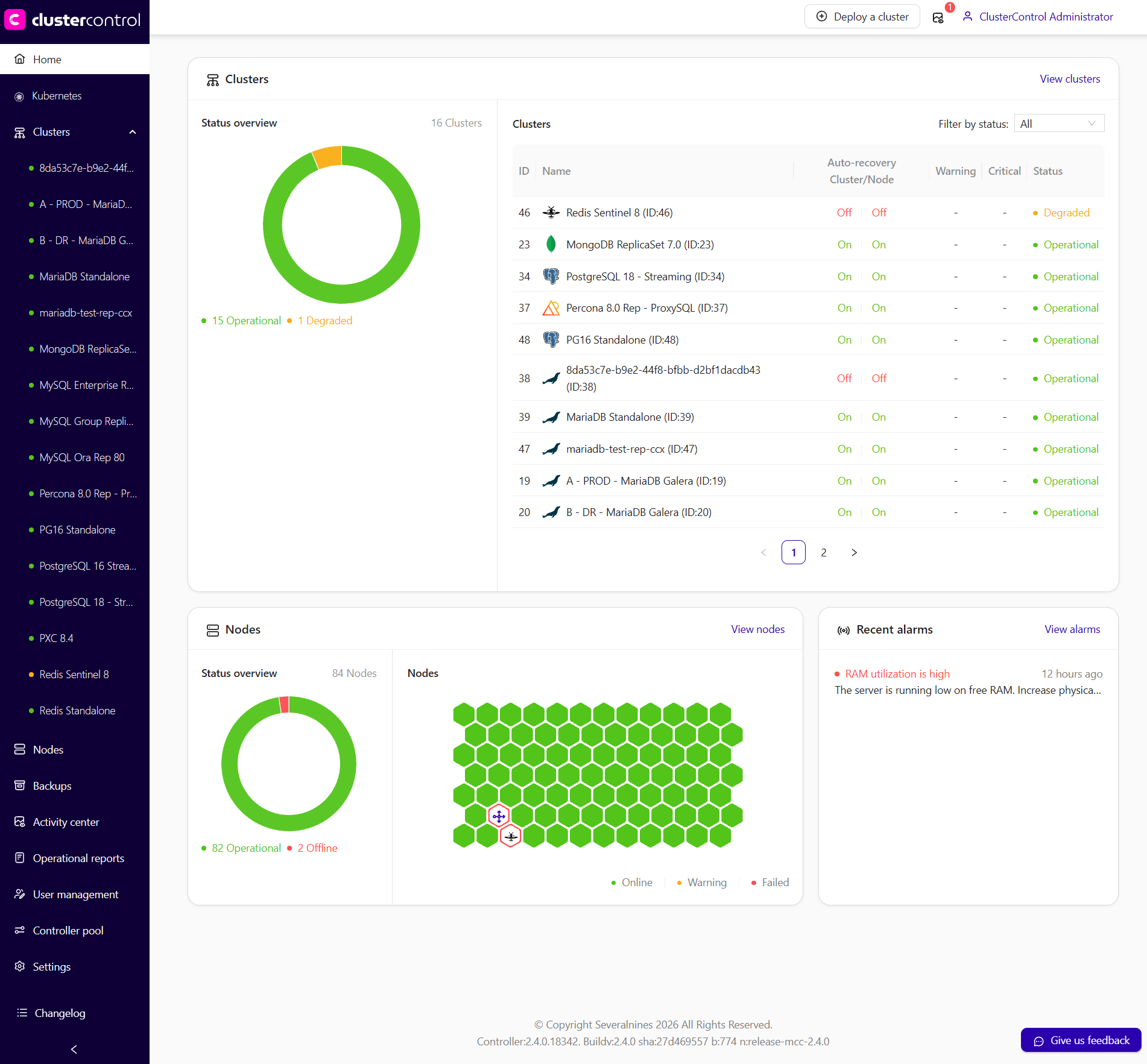
In the Home page, here are its key sections:
- The donut chart summarizes the clusters' state.
- A compact table listing clusters by ID, name, and status:
- Auto-recovery: Whether ClusterControl can automatically recover the cluster or node if a failure occurs. See Failover and Recovery.
- Warnings/Critical: Number of issues requiring attention.
- Status: Cluster status.
- The donut chart shows a summary of total nodes and how many are online or have warnings/failures.
- A honeycomb grid representing each node’s current state (green for online, red for failed and yellow for warning).
- Rollover on a honeycomb cell will pop up a card displaying more information about the node.
- Lists active alerts or alarms.
- If everything is running smoothly, you might see "No alarms".
Each card often has a View.. or Details.. link, taking you to a more detailed page. For example, View clusters, View nodes, or View alarms.
Tips
- Hover and Click: Many charts or icons are interactive - hover to see node details, click to drill down.
- Filtering and Sorting: In lists (e.g., the Clusters list), you can often filter by status or sort by name/ID.
- Always Check the Events/Alarms: They’re a quick way to spot issues before they become critical.
Navigation bar
The top navigation bar provides quick access to ClusterControl's common functionalities. It also displays the breadcrumbs for cluster list and notification banners. If you click sidebar's Clusters and click on a cluster, the breadcrumbs will appear on the navigation bar visualizing the current path you are at.
Subscribe Now
Clicking on the Subscribe Now button at the top-right corner redirects you to the Severalnines' Advanced Self-Serve page, where you can choose from the available subscription packages.
Self-serve is a licensing option offered by Severalnines for ClusterControl customers who want access to advanced features without a long-term support contract. It provides functionality similar to the Advanced license, but with a flexible monthly subscription model. Customers can renew or cancel at any time and manage their subscription directly through the self-serve portal.
This option is ideal for organizations that prefer to avoid annual commitments, have limited budgets, or want to evaluate ClusterControl’s capabilities before entering a long-term agreement. Whether for production, QA, staging, or development environments, the self-serve model offers a practical way to explore and utilize ClusterControl with greater flexibility and lower commitment. For more information, visit the Self-serve page.
Deploy a cluster
Clicking on the Deploy a Cluster button at the top-right area will give users two more options, as shown in the following screenshot:
- Create a database cluster – Use this deployment wizard to deploy a new database cluster or server. See Create Database Cluster.
- Import a database cluster – Use this deployment wizard to import your existing database cluster or server. See Import Database Cluster.
Activity center
Next to the Deploy a Cluster button is an icon (commonly appeared with a small red counter) called Activity center. Clicking on it will expand the quick view of activity center where you can see the latest alarms, jobs and audit logs. There are also Actions button associated with every entry where you can perform certain actions according to the entry's type.
User profile
The top-right corner provides quick access to the current user's profile. It provides the timezone information, email address and the full name (in first name, last name format) with quick access to profile management, license management and the logout page.
Sidebar
The left sidebar provides all ClusterControl global menus. It is collapsible and expandable by clicking the < or > icon at the bottom.
Kubernetes
Clicking on Kubernetes will expand the list of all database clusters managed by ClusterControl which running on Kubernetes platform. See Integration → Kubernetes.
Note
This feature can be disabled by going to ClusterControl GUI → Settings → License → Disable Kubernetes.
Clusters
Clicking on Clusters will expand the list of all database clusters managed by ClusterControl. Click on one of the clusters will open the individual cluster section on the main panel.
Nodes
Provides global overview of all nodes for all clusters managed by ClusterControl.
You can filter the list by cluster and node's status, by clicking on the filter icon in the respective columns. You can also perform node's management tasks by clicking on the Actions button.
Read more
Backups
The Backups page in ClusterControl provides a global view of all backup tasks, schedules, and storage repositories in your environment. It allows you to create new backups, manage existing ones, and review completed jobs. This page is essential for ensuring data safety and for streamlining backup operations.
Here are its key sections:
- Create backup – Clicking this opens a wizard or form to initiate a new backup job, schedule a backup or create a new Elasticsearch snapshot repository (specific to Elasticsearch backups).
- All Backups – Lists all completed or in-progress backups for all clusters. You can customize the display columns by clicking on the View button.
- Schedules – Shows the schedules configured for automatic or recurring backups for all clusters.
- Elastic Repositories – (Specific to Elasticsearch backups) Lists all Elasticsearch snapshot repositories.
Read more
Activity center
Provides global view of all alarms, jobs and audit logs for all clusters managed by ClusterControl.
Operational reports
The operational reports feature provides an overview of your database cluster’s performance, health, and activity over a selected time period. The reports help administrators review system status, resource usage, and operational events in a single place.
With operational reports, you can:
- Review resource usage such as CPU, memory, disk, and network utilization.
- Monitor cluster metrics including query throughput, replication lag, and system load.
- Track backup activity and identify failed or missed backups.
- View database status information such as uptime, availability, and recorded incidents.
- Generate reports for specific time periods or selected metrics.
Reports can be generated on demand or scheduled to run automatically, making it easier to monitor database operations and review cluster activity over time.
User management
Manage ClusterControl users, teams and authentication integration with directory services (LDAP or Active Directory).
Read more
Settings
Global settings for the ClusterControl instance.
Profile
Manage the current user's profile and time zone settings.
Updating user's profile
Click Settings to open the editing panel, where you can update your email address, first name, last name, and time zone. The selected time zone affects how time-related information is displayed in the ClusterControl GUI. Click Save to save the updated information.
Change password
Click on the Change password and specify the current password and the new password accordingly. Click Change to proceed.
If you want to reset the user's password instead, login as a user belongs to "admins" group and go to ClusterControl GUI → User management → {user} → Actions → Change password.
Cloud storage credentials
The Cloud storage credentials tab provides a centralized location for managing credentials used to store and retrieve backups from supported cloud providers. By configuring valid credentials here, you can automate backup uploads to, and downloads from, various cloud platforms.
The supported object storage platforms are:
- AWS Simple Storage Service (S3)
- Azure Blob Storage
- Google Cloud Storage
- S3-compatible object storage like MinIO, DigitalOcean Spaces, Openstack Swift and SeaweedFS
Cloud storage integration relies on other ClusterControl modules called cmon-cloud and clud. These binaries are provided by clustercontrol-cloud and clustercontrol-clud packages.
Read more
Notification services
Manage the integration with third-party notification and messaging platform on events triggered by ClusterControl. This feature allows you to integrate ClusterControl alerts into your organization's communication channels, incident response systems, workflow management systems or event-driven applications via webhook calls. You can configure the notifications to be sent out to all or specific clusters, or to all or specific alert severity like error or warning alerts.
Notification service relies on another ClusterControl module called cmon-events. This binary is provided by package clustercontrol-notifications.
Read more
Certificate management
Manage all keys and certificates of all clusters managed by ClusterControl. In this section, you can generate a new certificate authority (CA), generate a new self-signed certificate or import existing certificates into the certificate repository. The certificates imported or generated here can then be assigned to any cluster managed by ClusterControl.
Read more
License
View and manage the details of your ClusterControl license, as well as activating enterprise and experimental features. From this section, you can check if your license is active, identify how many nodes you can manage under the current license, and update the license key as needed.
The following table explains the fields shown in this section:
| Field | Description |
|---|---|
| License | Displays the edition of ClusterControl (e.g., ClusterControl Enterprise). |
| Status | Indicates whether the license is currently Active or Expired. |
| License owner | Shows the organization or individual that owns the license. |
| Expiration date | The date and time when the license will expire. Once this date passes, ClusterControl may revert to a restricted mode unless renewed or updated. |
| License owner's email | Contact email for the entity that owns the license. Usually used for support or renewal discussions. |
| Nodes limit | Displays how many database server nodes are currently managed compared to the total limit available under the license (e.g., 12/unlimited nodes). See Licensed nodes |
Info
ClusterControl offers the following license types:
- Community – Free license offering with basic features.
- Advanced (Self-Serve) – Monthly subscription license managed through the self-serve portal, without a support contract.
- Advanced – Commercial license with support options.
- Enterprise – Commercial license with extended support and enterprise-focused features.
See Key features and Pricing for features comparison.
Enable multiple controllers
The multi-controller feature enables centralized management of several ClusterControl installations from a single user interface. It supports environments with over 1000 nodes by horizontal scaling through the addition of multiple ClusterControl controllers.
From a unified dashboard, you can monitor, manage, and gain insights into all controllers, clusters, and nodes, with the ability to switch between active controllers for targeted operations.
Updating license key
For users with a valid subscription - namely Advanced (Self-Serve), Advanced and Enterprise - enter your license key by clicking on the Enter a license key button to activate features based on the subscription. The license string contains information about the license type, company/affiliation, email, expiration date, and the total number of licensed nodes.
The following example is license information that one would get from us:
Email: [email protected]
Company: Severalnines AB
Expiration Date: 2019-04-23
Licensed Nodes: 1
License Key: ewogICAgImNvbXBhbnkiOiAiU2V2ZXJhbG5pbmPkIEFCIiwKICAgICJlbWFpbF9hZGRyZXNzIjog
InRlc3RAc2VRZXJhbG5pbmVzLmNvbSIsCiAgICAiZXhwaXJhdGlvbl9kYXRlIjogIjIwMTktMDQt
MjNUMDA6MDA6MDAuMDAxWiIsCiAgICAibGljZW5zZWRfbm9kZXMiOiAtMSwKICAgICJ0eXBlIjog
IkVudGVycHJpc2UiCn0Ke3M5cy1zaWduYXR1cmUtc2VwYXJhdG9yfQp0RUew5OZKV8SqmmwiQEzT
P+qTNnmCphirIVm7MriA/aCdlJYQcr1NJr4nvTNcSmgu4uFVf3Ufv4olHr4wrBq0/Js9Rm8bJWZo
BO8svHzQhCmIVEWcTYub362krjRyREnOGXaqWwUnvkZ0uUCT+WDaM1P9qn/HawoNd0e8E0+7WiZK
CpwjH+ESqSEppeu/Ewzf3p0C0e8WZbwHtZ9UmX2qJNQq9NDlByrO8FtbVjOOL4zTbc8jV0W2DWzY
1swzOgeyk+7N2eGVRWfdUSzudQSXkT3LA4cdV2HAsU5QLnmKxSCgg+jq+RQJiPwdPXEr3gzjzJzV
+qhmOZ5tTN+WABPy9l3kpztlCbkfzO84/4lM7Z3c4rQ8snMTu6RvD2M+oh/4lhvR8M9RrQQcl8JF
RX2Ak1ZAKxAXkJ97Z5U7nIzuyUGuMTCXdKGEtQkBXzpIcYFvXDeWu0MUks+EULpqG+OFnl+rSZa0
nNTSW3mR/f9B+4e2mK4y2OpJhh4rWPXR1DLpLVLk/2p0o64aEizA+IPe0TP+ox7bFzEfAXirVWfC
/Ol7m1k6arRbl8PSV1DRRcefM+UsABa6jypoiit+JXNPOajdjY1WBgEekCn/jeXBBoPM2k26274u
br0BuHULLkxGSpC8I2/nW6s84E653FO1Kpbvyx+2SKJxwUxLiuEZ2g==
Only paste the license key string (starting after the License Key: part) into the license text field. Click Apply license key to activate the license into runtime. No service restart required.
Licensed nodes
The following nodes' type will be counted as licensed nodes by ClusterControl:
- MySQL/MariaDB/Galera Cluster database nodes
-
PostgreSQL/TimescaleDB/EDB database nodes(1)
- EDB requires appropriate licensing from the vendor. Kindly get the database license ready prior to the deployment.
-
ProxySQL nodes
- Redis database (or shard) nodes
- Valkey database (or shard) nodes
-
MongoDB Community/Enterprise database (or shard) nodes(1)
- MongoDB Enterprise requires appropriate licensing from the vendor. Kindly get the database license ready prior to the deployment.
-
SQL Server database nodes(1)
- SQL Server requires appropriate licensing from the vendor. Kindly get the database license ready prior to the deployment.
-
Elasticsearch master-eligible and data nodes
A "node" is an instance of database server or database proxy process. For PostgreSQL, ClusterControl supports managing multiple instances per host. Each PostgreSQL instance (host:port pair) is considered as one node.
The following nodes' type are NOT counted as licensed nodes:
- Load balancers/Connection pooler - HAProxy, PgBouncer, MariaDB MaxScale and Keepalived nodes
- MongoDB sharded cluster - MongoDB mongos, config server and arbiter nodes
- Monitoring - Prometheus, VictoriaMetrics nodes
- Backup-related nodes - Backup verification server, Elasticsearch snapshot repository nodes, pgBackRest repository nodes, Percona MongoDB Backup shared storage nodes
- ClusterControl nodes and ClusterControl multi-controller nodes
Best Practices and Notes
-
When the license expires, ClusterControl defaults back to the Community edition. For features comparison, refer to the ClusterControl product page. Your database cluster will remain operational after a license is expired.
-
If you want to revert an existing Enterprise edition installation to the Community edition (for example, to compare features during a trial), you can manually remove the license information from the ClusterControl host. On the ClusterControl server, run:
Warning
Once a trial license is truncated and the
cmonservice is restarted, there is no way to re-activate the same trial license anymore. -
ClusterControl will raise an alarm if a license is about to expire within 30 days (as well as a reminder banner when you logged in ClusterControl). Configure the mail server accordingly to receive the alarm via email. Ensure you renew your license before expiration to avoid interruptions in production management.
-
If you exceed your node limit, you may not be able to add additional nodes. Contact your license provider or Severalnines account manager to upgrade if you anticipate growth beyond the current limit. Severalnines also offers volume license and custom licensing options depending on the use cases and requirements.
-
If you experience any issues related to licensing, you may contact Severalnines support directly and provide the license's owner email address.
-
After updating your license key, consider refreshing your browser to confirm that all license-related features are enabled and loaded correctly.
Diagnostics
Toggle on UI audit data collection to capture user interface activity and related diagnostic data while reproducing an issue in the ClusterControl UI. This feature is intended for UI troubleshooting only. For issues related to the ClusterControl controller or managed database clusters, use the Error Report feature instead.
After reproducing the issue, download the collected audit data (in .json format) to share it with our support team for further analysis. Disable the setting afterward to stop data collection.
Changelog
Open the ClusterControl Release Notes page in the Severalnines Documentation Center. It provides release highlights, version-specific changes, release notes, and recent updates.
Footer
The footer displays information about the components' version that you are running on. For example:
            © Copyright Severalnines 2026 All Rights Reserved.
Controller:2.4.0.18342. Buildv:2.4.0 sha:27d469557 b:774 n:release-mcc-2.4.0
The above means in this particular setup, the running components are:
- ClusterControl Controller v2.4.0 and build number is 18342
- ClusterControl GUI (with multi-controller support) v2.4.0, commit hash is 27d469557 and build number is 774
Give Us Feedback
This form provides quick access to let us know your feedbacks of the product. If submitted, the form will be sent over via a HTTP call back to our feedback collection system, where it will reach the ClusterControl product manager inbox anonymously.
It is a one-way submission system and no futher information or follow-up is required. The submission requires an Internet connection and without it, the submission will fail.